
iMovie
Educreations
Explain Everything
Swivl
cell phone
These are just a few of the resources you can use to create an instructional video for your classroom. There is one resource you probably have hanging in your classroom right now that you won't add to your list - the interactive board.
Promethean's ActivInspire and Mimio's Mimio Studio software have a recorder located in the tools/application feature.
This simple to use feature allows you to record your voice and what you are doing on the board and/or computer screen. In fact, the videos in the "How-To Videos" section where made with Promethean's recorder and a Mac. Which reminds me.. I need to make a few more of these!
So, when will the recorder feature come in handy?
- make an instructional video on a new topic for students and parents
- make a quick homework help video and post to your website/blog/social media
- make a step-by-step video for student/parent reference
- make a "here are the instructions..." video for students
- let students make a video to how mastery of a topic
You can find four different hand-outs here on how to create a video with either ActivInspire or Mimio Studio.
Eva
Showing posts with label engagement. Show all posts
Showing posts with label engagement. Show all posts
Monday, January 12, 2015

Friday, April 11, 2014
mobile learning on mobile devices - Infuse Learning
So far I have talked about two mobile learning resources, Kahoot and Socrative. The third resource I have recently learned about is Infuse Learning.
I first heard about Infuse Learning at ISTE 2013 and then again at FETC 2014. I figured it was time for me to check it out!
Infuse Learning is a cross platform assessment platform for teachers and students. To start, teachers create a free account at www.infuselearning.com. Once the account is created, teachers could start with on the fly questions or dive in a little more with creating assessments and classes.
Lets go back to the account creation. Once created, you will see this screen...


Notice, there are no answers next to the multiple choice options. The students either have something in front of them or something was asked verbally.
The other Quick Assessments include:
- Draw Response - The students can draw their answer and submit it.
- True/False - The students can select true, false, or don't know.
- Multiple Choice - The students can select from a section, depending on how the teacher creates it.
- Sort in Order - The students can place multiple items in order, depending on how the teacher creates it.
- Open Ended Text Answer - The students type in their answer.
- Numeric - The students type in a number answer.
- Likert Scale - The students select depending on how the teacher creates it.
If you want a more formal assessment, you can create a quiz within quiz management.


I first heard about Infuse Learning at ISTE 2013 and then again at FETC 2014. I figured it was time for me to check it out!
Infuse Learning is a cross platform assessment platform for teachers and students. To start, teachers create a free account at www.infuselearning.com. Once the account is created, teachers could start with on the fly questions or dive in a little more with creating assessments and classes.
Lets go back to the account creation. Once created, you will see this screen...
The enrollment type for my session is open. In order for students to join, they go to student.infuselearning.com on any device that has Internet access. The screen will prompt the student to enter the Room ID (located on the upper left corner) and their name.
The Quick Assessment question types are what I call "on the fly" questions. You can ask these at any point during a lesson or activity. These do not require any prep before hand, hence the name.
For example, if you were to ask a multiple choice question, the students would see this on their device's screen.
The other Quick Assessments include:
- Draw Response - The students can draw their answer and submit it.
- True/False - The students can select true, false, or don't know.
- Multiple Choice - The students can select from a section, depending on how the teacher creates it.
- Sort in Order - The students can place multiple items in order, depending on how the teacher creates it.
- Open Ended Text Answer - The students type in their answer.
- Numeric - The students type in a number answer.
- Likert Scale - The students select depending on how the teacher creates it.
If you want a more formal assessment, you can create a quiz within quiz management.
There is more to Infuse Learning than I have talked about, so if these features excite you then I encourage you to check it out!
Friday, March 14, 2014
mobile learning on mobile devices - Socrative
My district, like may others around the US are looking at becoming a BYOD/BYOT district. With the introduction of various devices, the need for cross platform resources is a must! In my first post on this topic, I talked about KaHoot! Today's resource is a rather popular mobile learning resource - Socrative.
I first learned about Socrative last year from my PLN and again from a teacher in one of our elementary schools. She was using Socrative with the laptop cart from the library. This year, I have seen students using Socrative with iPods/iPads as well. That is what is so great about Socrative, it is not device or platform specific.




I first learned about Socrative last year from my PLN and again from a teacher in one of our elementary schools. She was using Socrative with the laptop cart from the library. This year, I have seen students using Socrative with iPods/iPads as well. That is what is so great about Socrative, it is not device or platform specific.
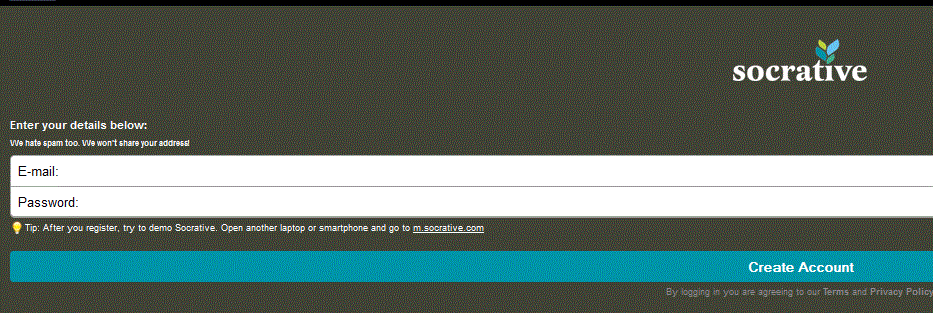
First, teachers need to create an account at the Socrative website. Students do not need an account, but we will explain why in a moment. Teachers can access Socrative by going to t.socrative.com or using the app available on iOS, Windows, and Android devices.
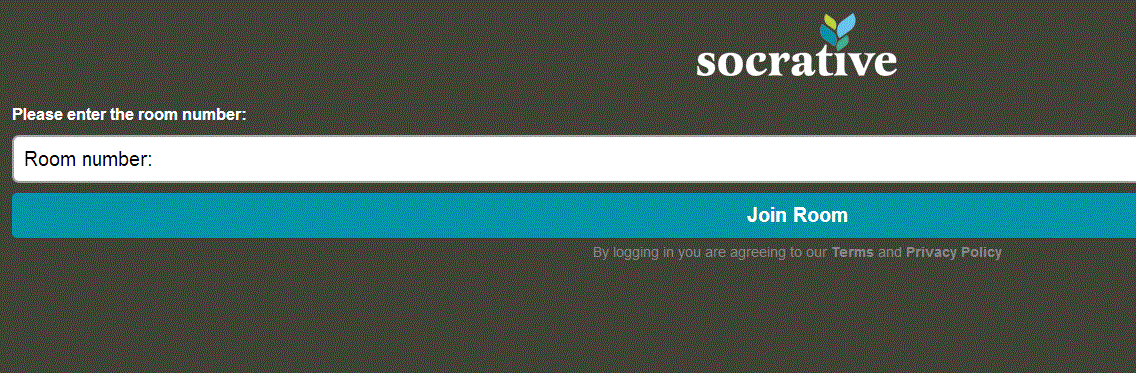
Once the account is created, students can access Socrative by going to m.socrative.com and using the app available on iOS, Windows, and Android devices. Students will need one thing to "log in" and that is the room number assigned to the teacher by Socrative.
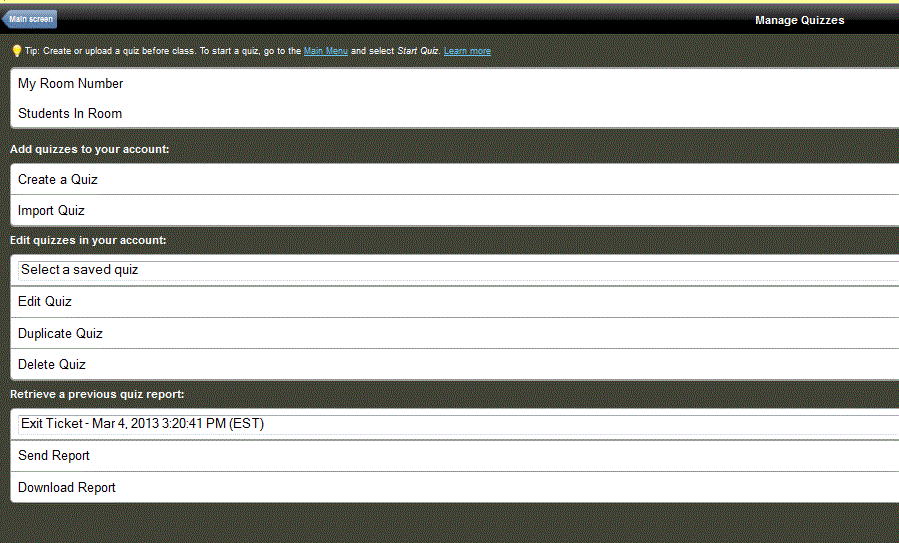
Teachers can create formal quizzes or do what I like to call "on the fly" assessing. "On the fly" assessing allows teachers to stop and do an understanding check during a lesson. Formal quizzes can be multiple choice, true/false, or short answer.
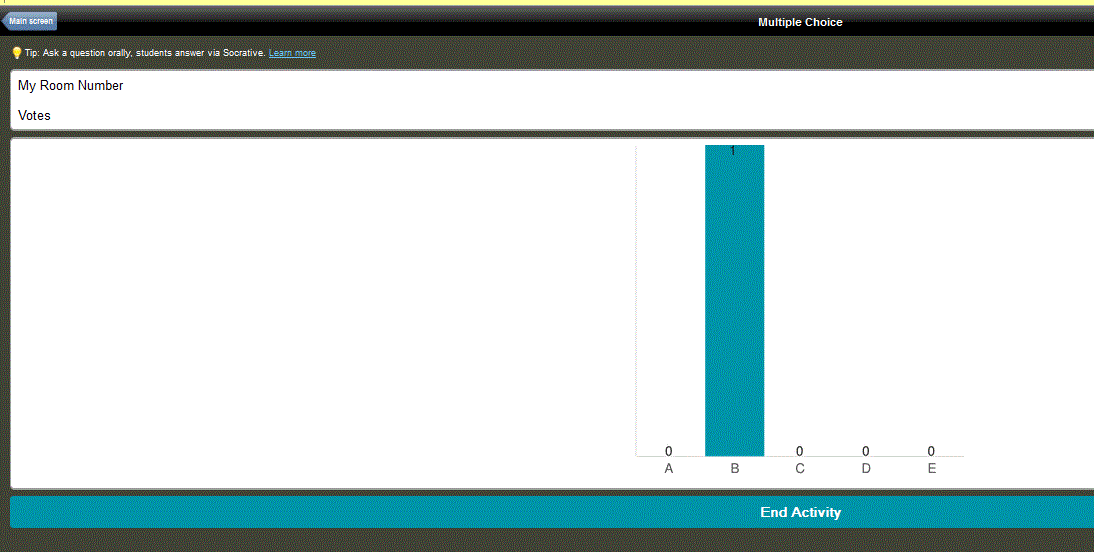
Socrative also allows you the create exit tickets and a game called Space Race. Of course, data on how the students performed is always available through the reports. You can also see "live data" as the students answer teacher paced questions, like "on the fly".
An example of an "on the fly" question for students.
This is what the teacher sees as the students respond.
Socrative does offer user guides and helpful resources in the Socrative Garden. There is a Socrative 2.0 that I am excited to learn more about, so be sure to check that out!
Do you use Socrative? What are your thoughts? Share your ideas!
Tuesday, February 18, 2014
mobile learning on mobile devices - Kahoot!
With more district moving to BYOD and BYOT policies, it is becoming critical to provide cross platform resources and suggestions to teachers. Training can no longer be on just one program but rather how multiple resources can help a specific concept or standard.
In this blog series, We are going to look at a few mobile learning resources that can be used across a variety of platforms. The first one we will look at is Kahoot! I first learned about Kahoot! at FETC. I actually heard it mentioned in two different sessions, so I made sure to check it out immediately.
Teachers start by going to getkahoot.com and creating a free account.

Once you have registered, you can sign in and start creating your first quiz, discussion, or survey.


After you have added questions, you are ready to play with the students. When you launch the quiz, students can join using the website kahoot.it and the game-pin code. This game-pin code will change for every quiz. As the students join, their names will appear on the screen.


In this blog series, We are going to look at a few mobile learning resources that can be used across a variety of platforms. The first one we will look at is Kahoot! I first learned about Kahoot! at FETC. I actually heard it mentioned in two different sessions, so I made sure to check it out immediately.
Teachers start by going to getkahoot.com and creating a free account.
Once you have registered, you can sign in and start creating your first quiz, discussion, or survey.
After you have titled the quiz, you can start adding questions. Questions can include images and videos taken straight from YouTube. You can adjust whether the question is worth points and how long the students have to answer.
The questions will appear on the computer screen and the students will answer using their device.
Your competitive students will enjoy Kahoot! After each question, students are ranked based on the speed at which they answered.
Kahoot is a great resource for lower elementary students because of its simply design. Secondary classrooms can also benefit from Kahoot because of its cross platform ability.
Have you ever used Kahoot? What are you thoughts?
Monday, August 19, 2013
Do you Web 2.0?
I found the best way to grow professionally - every night! I take part in educational Twitter chats throughout the week. So far, I am really enjoying and learning a lot from #edtechchat which occurs every Monday from 7-8 CST and #PATUE which occurs every Tuesday from 7-8 CST. Recently, #MSedchat started - actually it started last week. This chat is every Thursday from 8-9 CST.
This week's #edtechchat was on the topic of Web 2.0 tools. What I loved about this chat, and other chats actually, is the participants didn't start naming ALL the Web 2.0 tools that exist. Rather, we had a discussion about why teachers should use Web 2.0 tools and some obstacles they may need to overcome. The last two questions dealt with what tools we use and what tools we plan to explore this school year.
So, what did I learn?
Web 2.0 tools ...
~ provide students with a way to create, connect, and collaborate.
Tools like ScreenChomp and Educreations on the iPad allow students to create an original work based on a topic. Students can showcase what they have learned through their own thoughts and expressions. Allow students to create something to "show what they know" rather than completing a worksheet provides the teacher with more insight into what the student actually knows and understands. A worksheet just shows the lowest levels of Blooms.
~ should enhance the lesson rather than try to teach the lesson.
Technology can not replace the teacher. Technology can enhance a lesson and provide further learning opportunities. VoiceThread can not teach students about the water cycle, but through the use of VoiceThread, students can learn more about the topic through the eyes and minds of students.
~ need to be cross-platform and easy to understand for both teachers and students.
PC, Mac, iPad, Nook, Kindle - Oh whoa the list can go on and on. Web 2.0 tools need to work on most if not all platforms. This provides all students and all devices the opportunity. This is crucial in BYOD schools. Teachers have to use tools that all students can gain access to and not just a select few.
~ be worth the screen time provided to students.
The American Academy of Pediatrics says children under 2 should not have screen time and children over 2 should have limited screen time, one or two hours a day. Two hours a day may seem like a lot, but that can quickly add up between school and home. If a student spends 30 minutes in a computer lab and another 30 minutes in front of a screen in the classroom that only leaves 60 minutes of screen time at home. Sixty minutes is two Disney cartoons. That doesn't even take into account mobile devices, game consoles, etc. Teacher MUST select the Web 2.0 tools they select for students wisely. Don't let the students play on a mindless math game for 30 minutes. Put their minds to work by creating a graphic organizer on Popplet or creating a story on StoryBird or Little Bird Tales.
~ should be shown to teachers through classroom integration, rather than in a sit and get session.
I am guilty of this statement. I have shown teachers about a Web 2.0 tool in a sit and get session. Teachers need time to play with the tool and decide if its something they will / can integrate into their curriculum. I saw the best PD idea at ISTE this past June. The presenter take us a list of four tools. We picked the one we wanted to learn and explored with in a small group. We then got into a different group and shared what we just learned. THEN she started to talk to us about the tools.
~ need to keep student identity private.
This one is big! We have to keep the identify of students private and the students themselves safe while online. This leads to the teaching of digital citizenship to our students and our teachers! Things like, putting your full name online and going into chat rooms need to be topic of conversation before diving into certain Web 2.0 tools or on the Internet in general.
These are just three of the tweets that really stuck in my mind tonight included:


So, what are some good Web 2.0 Tools you can use with your students?
~ Popplet
~ Google
~ Schoology
~ Edmodo
~ Voice Thread
~ StoryBirds
~ Little Bird Tales
~ Animoto
~ Sock Puppets
~ ScreenChomp
I'm am not going to tell you about these tools though. I want you to go out and learn about them! Don't forget to share what you learn.
This week's #edtechchat was on the topic of Web 2.0 tools. What I loved about this chat, and other chats actually, is the participants didn't start naming ALL the Web 2.0 tools that exist. Rather, we had a discussion about why teachers should use Web 2.0 tools and some obstacles they may need to overcome. The last two questions dealt with what tools we use and what tools we plan to explore this school year.
So, what did I learn?
Web 2.0 tools ...
~ provide students with a way to create, connect, and collaborate.
Tools like ScreenChomp and Educreations on the iPad allow students to create an original work based on a topic. Students can showcase what they have learned through their own thoughts and expressions. Allow students to create something to "show what they know" rather than completing a worksheet provides the teacher with more insight into what the student actually knows and understands. A worksheet just shows the lowest levels of Blooms.
~ should enhance the lesson rather than try to teach the lesson.
Technology can not replace the teacher. Technology can enhance a lesson and provide further learning opportunities. VoiceThread can not teach students about the water cycle, but through the use of VoiceThread, students can learn more about the topic through the eyes and minds of students.
~ need to be cross-platform and easy to understand for both teachers and students.
PC, Mac, iPad, Nook, Kindle - Oh whoa the list can go on and on. Web 2.0 tools need to work on most if not all platforms. This provides all students and all devices the opportunity. This is crucial in BYOD schools. Teachers have to use tools that all students can gain access to and not just a select few.
~ be worth the screen time provided to students.
The American Academy of Pediatrics says children under 2 should not have screen time and children over 2 should have limited screen time, one or two hours a day. Two hours a day may seem like a lot, but that can quickly add up between school and home. If a student spends 30 minutes in a computer lab and another 30 minutes in front of a screen in the classroom that only leaves 60 minutes of screen time at home. Sixty minutes is two Disney cartoons. That doesn't even take into account mobile devices, game consoles, etc. Teacher MUST select the Web 2.0 tools they select for students wisely. Don't let the students play on a mindless math game for 30 minutes. Put their minds to work by creating a graphic organizer on Popplet or creating a story on StoryBird or Little Bird Tales.
~ should be shown to teachers through classroom integration, rather than in a sit and get session.
I am guilty of this statement. I have shown teachers about a Web 2.0 tool in a sit and get session. Teachers need time to play with the tool and decide if its something they will / can integrate into their curriculum. I saw the best PD idea at ISTE this past June. The presenter take us a list of four tools. We picked the one we wanted to learn and explored with in a small group. We then got into a different group and shared what we just learned. THEN she started to talk to us about the tools.
~ need to keep student identity private.
This one is big! We have to keep the identify of students private and the students themselves safe while online. This leads to the teaching of digital citizenship to our students and our teachers! Things like, putting your full name online and going into chat rooms need to be topic of conversation before diving into certain Web 2.0 tools or on the Internet in general.
These are just three of the tweets that really stuck in my mind tonight included:
~ Popplet
~ Schoology
~ Edmodo
~ Voice Thread
~ StoryBirds
~ Little Bird Tales
~ Animoto
~ Sock Puppets
~ ScreenChomp
I'm am not going to tell you about these tools though. I want you to go out and learn about them! Don't forget to share what you learn.
Tuesday, April 30, 2013
Engaging Students with Skype
Today I had the opportunity to participate in a Skype lecture with a group of Senior English students and a Ph.D. student from Virginia Commonwealth University. The students were engaged. Yes, I said it! These Senior English students with just a few days left in high school were engaged!

The lecture was about identity and the book Invisible Man. The lecture and the conversations were great. The students were asking engaging questions and walked out of class excited about the lecture and wanted to do it again.
The students would have never had this opportunity without the use of a free online tool - Skype. With the use of Skype, students are not able to experience the world that exists beyond the four walls of the classroom.
So how do you get started? First, download Skype and create an account. If you have a personal account, you can use that or create an educational account. The next thing you need to do is find someone to Skype. Easy enough, right? Yes! There are resources out there to help educators find professional and other educators to Skype with.
Skype in the Classroom ~ https://education.skype.com/
This website should be your first stop when looking for Skyping experiences. On this site, you can other educators and professionals that want to Skype and gain that experience of learning beyond the four walls.
Skype an Author Network ~ http://skypeanauthor.wetpaint.com/
This website provides a list of authors that you can contact for a Skype lesson. Keep in mind, you won't find famous authors (no offense) on this list. You will find up and coming authors and authors the students may not know .. yet. If you want to Skype with a current author, be ready to write a check in most cases.
Authors Who Skype with Classes for Free ~ http://www.katemessner.com/authors-who-skype-with-classes-book-clubs-for-free/
This is another list of authors that will Skype with your students.
If you are a secondary teacher, try talking with the local or not so local university to find a professor or graduate student that would Skype with your class. This will help bring your subject area more to life for the students.
What resources do you use to find Skype activities?

The lecture was about identity and the book Invisible Man. The lecture and the conversations were great. The students were asking engaging questions and walked out of class excited about the lecture and wanted to do it again.
The students would have never had this opportunity without the use of a free online tool - Skype. With the use of Skype, students are not able to experience the world that exists beyond the four walls of the classroom.
So how do you get started? First, download Skype and create an account. If you have a personal account, you can use that or create an educational account. The next thing you need to do is find someone to Skype. Easy enough, right? Yes! There are resources out there to help educators find professional and other educators to Skype with.
Skype in the Classroom ~ https://education.skype.com/
This website should be your first stop when looking for Skyping experiences. On this site, you can other educators and professionals that want to Skype and gain that experience of learning beyond the four walls.
Skype an Author Network ~ http://skypeanauthor.wetpaint.com/
This website provides a list of authors that you can contact for a Skype lesson. Keep in mind, you won't find famous authors (no offense) on this list. You will find up and coming authors and authors the students may not know .. yet. If you want to Skype with a current author, be ready to write a check in most cases.
Authors Who Skype with Classes for Free ~ http://www.katemessner.com/authors-who-skype-with-classes-book-clubs-for-free/
This is another list of authors that will Skype with your students.
If you are a secondary teacher, try talking with the local or not so local university to find a professor or graduate student that would Skype with your class. This will help bring your subject area more to life for the students.
What resources do you use to find Skype activities?
Subscribe to:
Posts (Atom)


