Showing posts with label digital_tools. Show all posts

Friday, October 18, 2019

Get Students Talking With Digital Tools - Looking At The Tools

Earlier this month, I had the opportunity to conduct a webinar with Simple K12. The topic was on I have discussed before, students talking with digital tools.

Students have A LOT to say.. just ask any K-12 teacher.  However, with some guidance and the right tools, students can share their thoughts, knowledge, and passions to a global audience.

When you think of students talking, you immediately go to the Speaking and Listening standards under ELA. The idea of using your voice doesn't have to stay in the ELA classroom though. Students can flex their voice in math, science, and social studies too.

Let's look at three tools students can start using today.

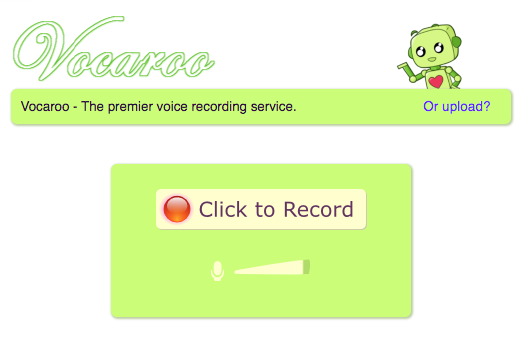
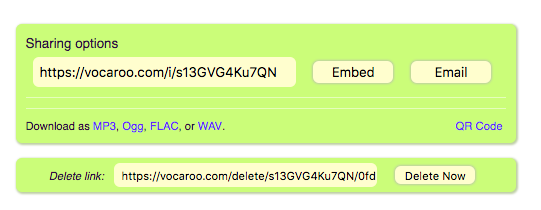
The first is Vocaroo.  I have shared about Vocaroo for several years. (previous post on Vocaroo) Vocaroo is a simply, web based program that allows students to record and share their recording.  Students in K-12 can use this tool!  The sharing options are great .. link, MP3, WAV, and even a QR Code. Side note, the recordings do not last forever, so if it is something you want to keep for years, download and save it.
             

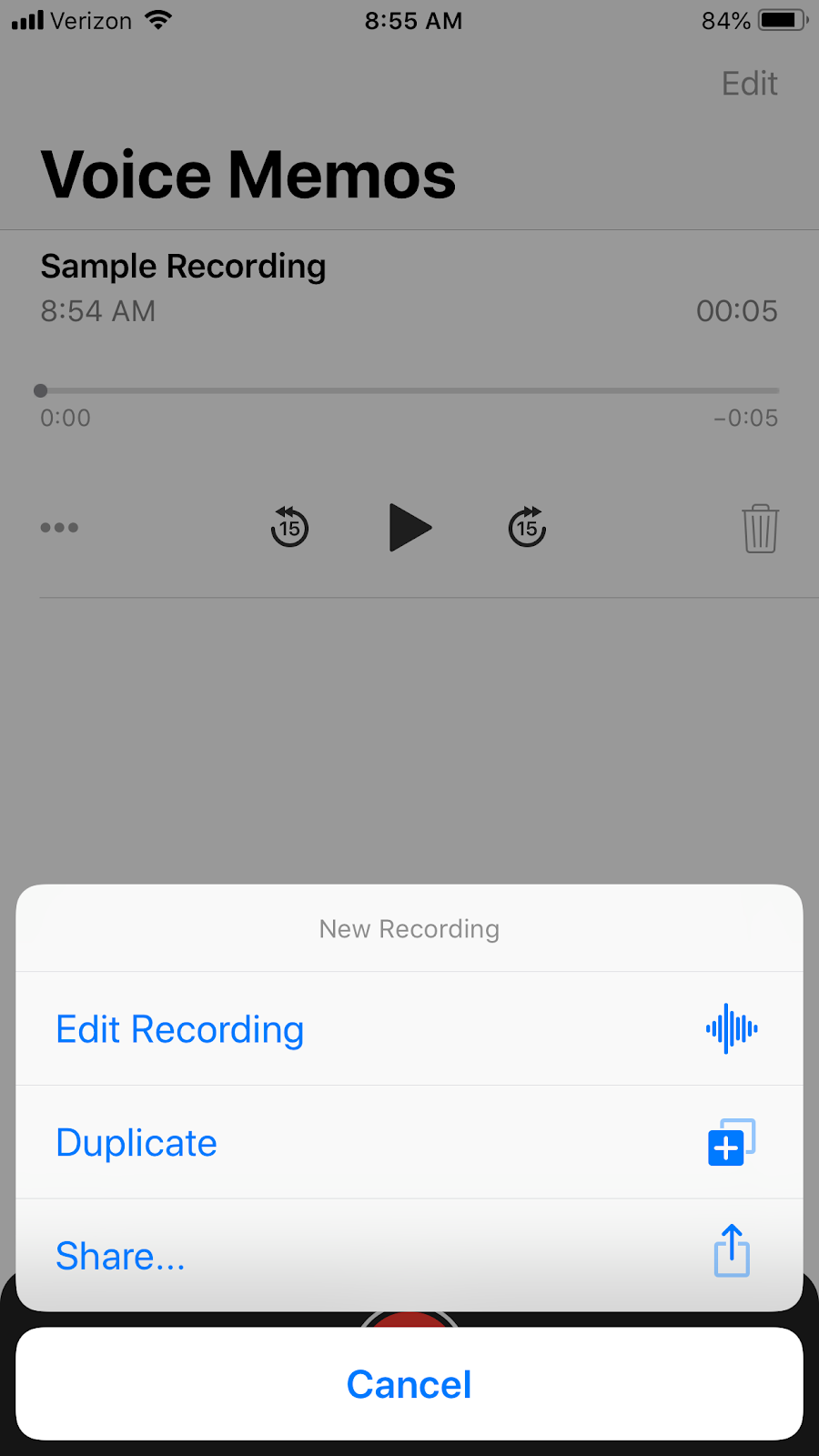
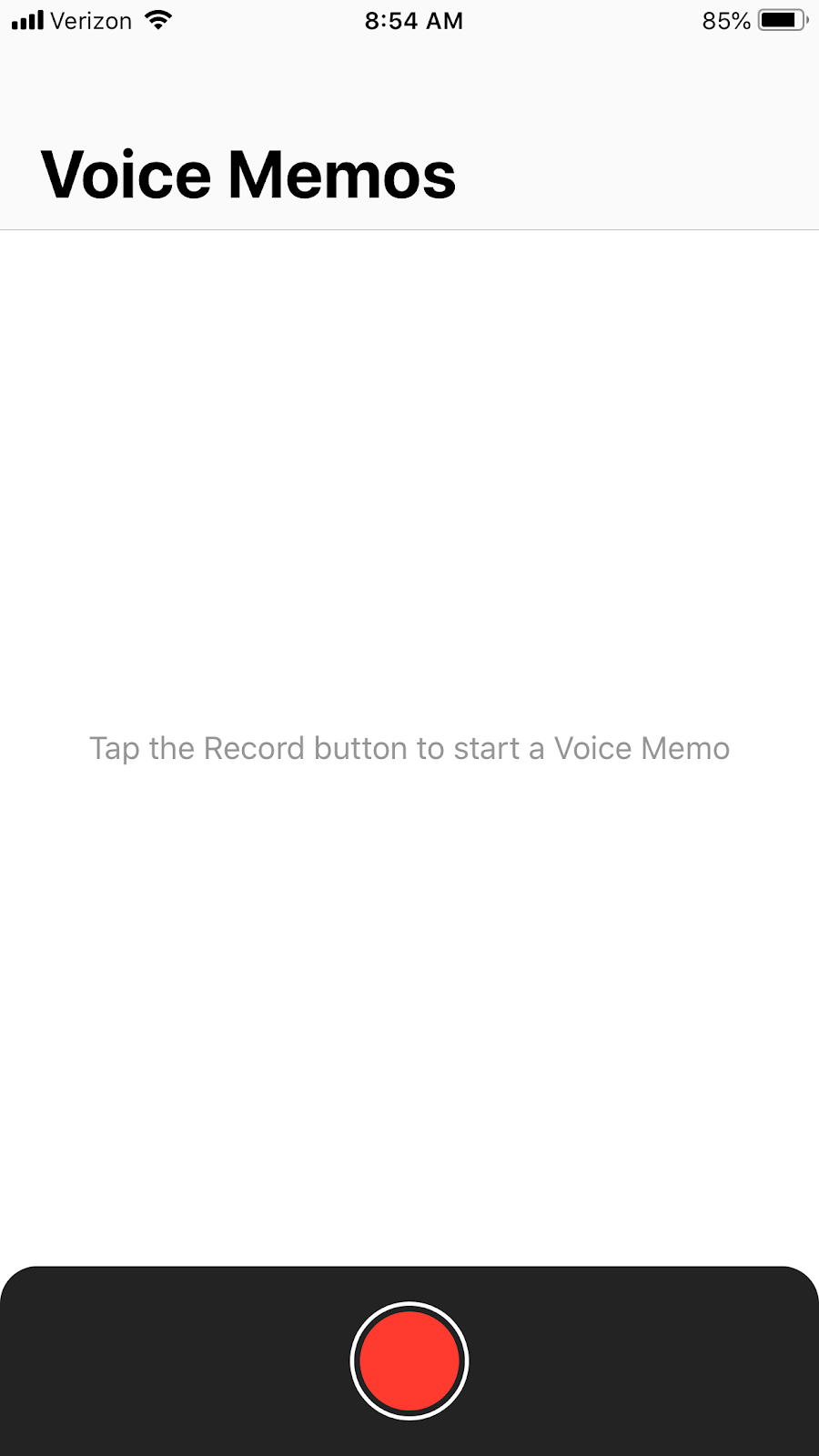
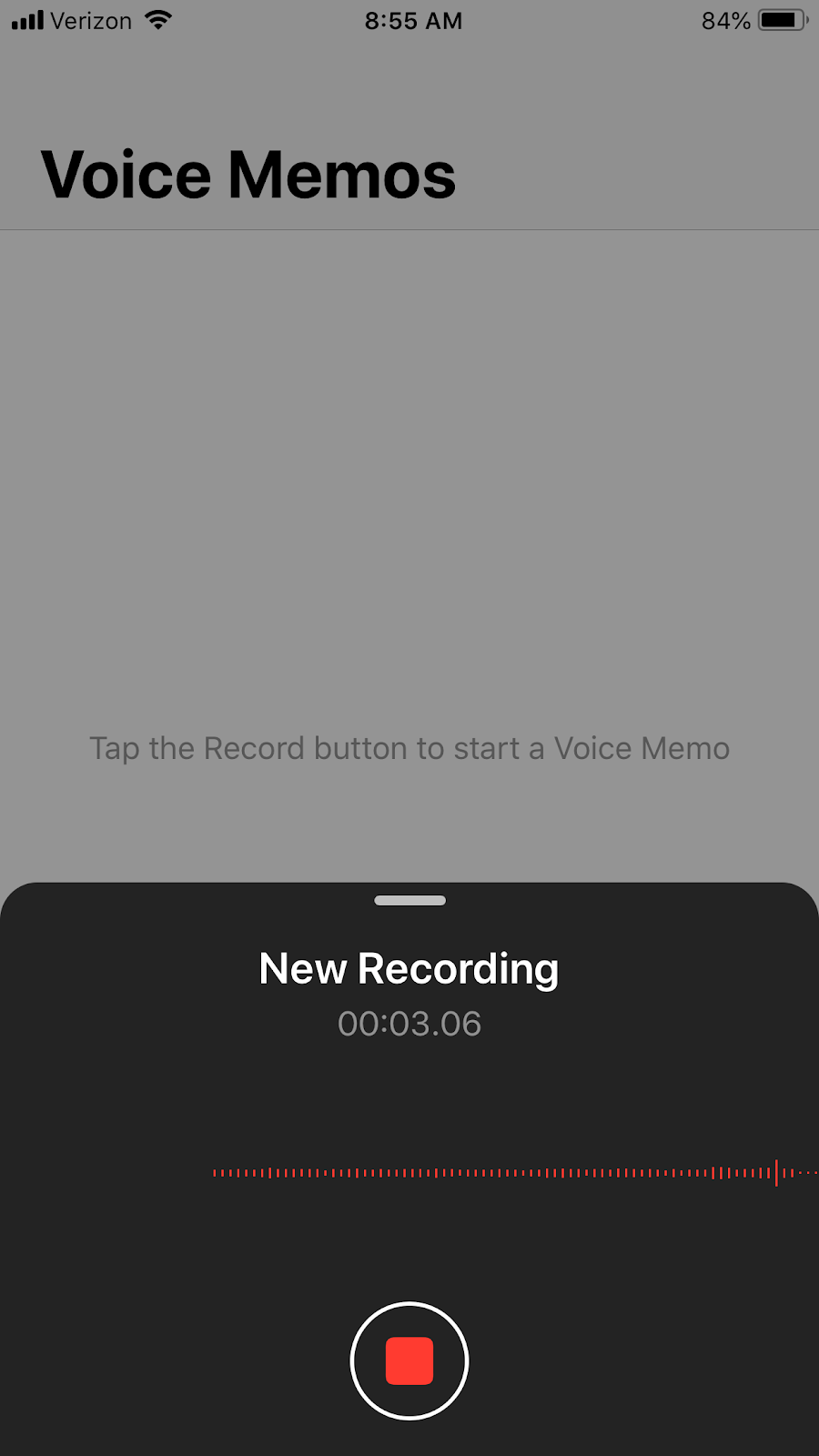
Voice Memos is one that most of us have at our fingertips, but don't realize it.  Voice Memos is an iPhone / iPad app that appears simple but is pretty powerful. Like Vocaroo, just about anyone can use Voice Memos to create a recording. Once recorded, you can edit the recording and simply save and share. Depending on what accounts you have connected to your iPhone / iPad, you could share via Google Drive or iCloud.
    

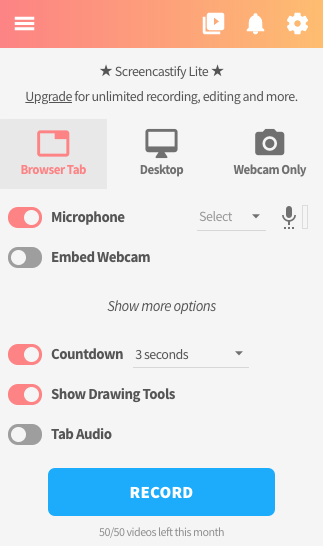
The third tool is a Chrome extension, Screencastify. This extension allows you to not only record your voice, but your screen and webcam as well.  There is a free and paid version.  The free version provides 50 videos per month and a limit of 10 minutes per video. You can share the videos to your Google Drive with the free version, which is a great plus!

       

As always, if you teach students 13 years old and under, have a conversation with your technology department prior to using any tool with your students. You want to make sure the tools you select have been vetted by the department and are appropriate for use.

Some other tools worth mentioning include Audacity, Explain Everything, and Twisted Wave.

In the next post, we will talk about different activities students and teachers can use in the area of speaking and listen in all subject areas.

Do you have a tool you love using? Share that with us!

Tuesday, March 27, 2018

Making a necessary evil fun and engaging!

Student assessment. It happens in schools all around the US .. all the time! Student assessment can make your extremely nervous. It can also make you wish the class period would never end.

I had the chance to share some online assessment resources with a group of teachers in February. They could name all of the icons below... except one!


They couldn't figure out the top, left icon. That is the icon for The Answer Pad.

The Answer Pad, like the other programs, allows your to assess students in an interactive format.

One thing I like about The Answer Pad is the fact you don't have to have a certain device. You can access it from the website, iOS app, or Android app. This means BYOD classes can use The Answer Pad as well as a one-to-one environment.

Once you create your account, you can start using The Answer Pad without having to enter the first student or question. This is a plus for me!  This means one less login/password for students (and me) to remember. I can also ask questions on the fly, which means I am prepared for those teachable moments.

When you select the Quick Connect feature, students enter the session with a Connect Code.  Once they are in the session, you can ask a variety of questions. I personally love the drawing question. This may be a little difficult with a mouse, but it forces the students do to more than mark a letter.


The Likert Scale question is also a good question for self assessment.  Ask the students who well they feel they understand the material.


You will see the student answers on your screen, which allows you to quickly check who does and does not understand the concept being assessed.

This is an example of a student, Eva, selecting thumbs up for the Up/Down question.

The Answer Pad also allows you to create student accounts and make assessments ahead of time.  You can also pay a yearly fee for more features. 

For me, however, I like the options available to me in Quick Connect. I can assess my students on the fly using multiple question formats. It doesn't matter the device type and I can see the student responses immediately and adjust the lesson accordingly.

Have you ever tried The Answer Pad?  If so, tell us about your experience!

Thursday, December 17, 2015

Chrome Extensions for Teachers and Students

 I have several Chrome Extensions that I have downloaded and use, but these are three of my favorite Chrome Extensions!  Do you have a favorite?  Share them with us!


Snagit_12_icon.png
SnagIt

I am a big fan of SnagIt. You can clip images and take videos from within your browser.  Everything you do saves automatically to Google Drive.  Want more information on SnagIt, check out the resources below.


3X1fxbbop0c7Vjp2rubX0KI6HOA1Y4lGbxxJB8nQhczIIiehvQ2o45Lz36lSm9Y-4SWKinyj1w=s128-h128-e365
MoveIt

MoveIt is a great resource for teachers to get kids up and moving!  MoveIt provides quick movement breaks on the intervals you select. The movements include pushups, arm rotations, and wall sits.

y-LiEeGQqDLCN0EQQ9nCpa9vwqitRbKOXmFNHs1QCYxYZWf5IRhFrYtJKlZEg0phQ8Km03fqUw=s128-h128-e365 
Clearly

Clearly is part of EverNote.  Clearly allows the user to remove the "extra stuff" on a website for an easier read. You can also print out the easier read. This is a great resource for teachers who want to use current web articles, but want the students to focus on the article and not the side ads.


What is your favorite Chrome Extension?
 

Friday, May 1, 2015

Don't be afraid of the screencast!

How-to videos are everywhere!  Just Google "how to...." and you will come across multiple links. 

In fact, just a few weeks ago, a how-to video on YouTube saved our Play Station from a piece of pepperoni!


How-to videos are made by everyday people and most of the time with simple resources.  Educators can follow these how-to video examples and apply it to their classroom. This is where the screencast comes in!  A screencast, according to Kathy Schrock's Guide to Everything, is the capture of the action on a computer screen while you are narrating. A screencast can be used as a step-by-step video for students made by teachers or a "show what you know" video made by students for teachers to assess.


There are some great tools out there teachers can choose from when entering the world of screencasting.  TechSmith creates two that I especially like - Jing and SnagIt.  I like these because the are free and simple, yet effective.  Jing is a program you can download onto your PC or Mac.  SnagIt is a Chrome app/extension you can add.

SnagIt allows you to record images and videos from within the Chrome browser.  You do have a few editing options, like cropping and the addition of text and arrows. The images are saved in your Google Drive account within a folder named "TechSmith".  You can also download the image to your computer or copy the URL.


In order to record a video, you will need to make sure you have the SnagIt extension.  Just like the images, videos are saved in Google Drive. You can also get a Google Drive link to the video or send it to YouTube.

I have found myself using SnagIt on a daily basis.  I currently use it more for the images, but I am finding a need for the video capture more and more.

There are other tools out there as well.  Screencast-O-Matic and Screenr are two websites that allow you to record a video without having to create an account or download anything.  Double check your Java, because both websites use it.

If you need to make a screencast of your iPad, check out Reflector.  They recently came out with Reflector 2, which allows you to reflect your android tablet too.


So why make a screencast?

- instructions for students when you are out sick
- step-by-step guides for parents when it's homework time
- how to guides for difficult concepts
- instructions for your visual learners

And don't forget to let your students make a screencast or two to show their understanding of a concept.
 
Do you make screencasts?  What resources do you use?  Share your thoughts with us!  Click here for another blog post I wrote about recording yourself.

Tuesday, October 7, 2014

CE14 ~ Digital Storytelling

Students love to share their stories. As they enter the classrooms on Monday morning, they are eager to share with their classmates and teachers what happened over the weekend.

Storytelling does not have to only occur in a verbal fashion.  That is where technology comes in!  Digital Storytelling is telling a story with a digital tool.  It can be a simple as recording your voice or a little more in-depth, like making a stop motion movie.

Here are some great digital resources your students (and you) can use to create digital stories.

Web 2.0


Animoto is a resource you can find online as well as on iOS devices.  Animoto allows the user to create videos by adding images, video, sound, and text. They do have pricing options, but free is good!  Free allows the students to create a 30 second movie.  Here is an example of an Animoto movie. Animoto is a great way to allow students to showcase information gathered from a mini research session.

Little Bird Tales and StoryBird are two web resources students can use to create digital books.  Little Bird Tales allows the students to add their own voice to the story as well as their own art work using the drawing pad. This is great for younger students who may not have strong keyboarding skills. Little Bird Tales has a free and premium teacher account. StoryBird is another great digital book creation website. This site has the most amazing artwork the students can select from to create their story. StoryBird also offers a free class account. This is a great resource students can use to create a variety of stories just any topic/subject.


iPad/iPhone
There are some great apps out there that allow you to create digital stories.  You have to find the one that meets the needs of your students, but enjoy exploring while you do!


ScreenChomp is one of those apps that can go into the hands of Kindergarten and older!  ScreenChomp is a free app created by TechSmith Labs. ScreenChomp allows you to record your voice while working in the white space area. Here is a recent blog about ScreenChomp and how it connected to ISTE*S and CCSS.


Sock Puppets is another one of the those, any age can use apps.  Sock Puppets does have a free, but does contain in-app purchases.  The free version gives you the ability to record a 30 second movie. Don't think of this as a limitation. Think of it as a planning tool.  Students must plan a 30 second something in order to use this app. This is great for mini student generated lessons and presenting shorter research topics. The movies can be shared via Facebook and YouTube.  The best part is listening to the movie -- the voices sound hilarious and will get the attention of your students.


 Here is a previous blog post about how students (and teachers) can record what they are doing.

These are not the only digital storytelling options.  Below are two more great resources you can use to learn more about the topic!

Kathy Schrock's Guide to Everything - Digital Storytelling
National Writing Project - Digital Storytelling with Teacher Consultants

Monday, April 28, 2014

a partner for digital writing - Popplet

Common Core State Standards ~ Writing Standard #6

~ Kindergarten-2nd Grade - With guidance and support from adults, explore a variety of digital tools to produce and publish writing, including in collaboration with peers.

~ 3rd Grade - With guidance and support from adults, use technology to produce and publish writing (using keyboarding skills) as well as to interact and collaborate with others.

~ 4th Grade - ....demonstrate sufficient command of keyboarding skills to type a minimum of one page in a single sitting.

When you read this standard, there are a few words that stand out most teachers are not 100% comfortable with - digital tools, technology, collaboration/collaborate, keyboarding. Popplet is one of many web resources teachers can use to help address those uncomfortable, techie words!


Popplet is a web resource that allows the user to create a graphic organizer/thinking map/bubble map. Popplet has a free and paid edition.  I currently use the free edition, and love the potential!

First things first, you need to create an account.  Once the account is created, you can start make your first Popplet. When you make a new Popplet, you will need to provide a title and select its background color.


You will start off with a blank screen, which is great because you have a blank canvas to work with! The bubble within Popplet are called Popples. These can be made by either double clicking on the screen or selecting "new popple" found under the tools icon.


Each popple can be moved by simply clicking and dragging. You can also increase and decrease the size of the popple.

A popple can include typed text, an image/video from either the web or your computer, or a drawing. You can also change the color of the popple. These four options are located on the bottom. The upper right corner provides a place for comments related to the popplet and the four gray circles will create and connect a new popplet.


Do you notice my name in the upper left corner? This is because I made the popple using my account.  You can invite other users to join this Popplet. This will allow for collaboration among multiple users on one "document".


I have just touched the surface of what Popplet can do!  Below are the other options until the tools icon.  Popplets can be printed, exported, viewed full screen, etc!


Do you already use Popplet?  Share your thoughts and ideas!


Friday, April 11, 2014

mobile learning on mobile devices - Infuse Learning

So far I have talked about two mobile learning resources, Kahoot and Socrative. The third resource I have recently learned about is Infuse Learning.

I first heard about Infuse Learning at ISTE 2013 and then again at FETC 2014.  I figured it was time for me to check it out!

Infuse Learning is a cross platform assessment platform for teachers and students. To start, teachers create a free account at www.infuselearning.com. Once the account is created, teachers could start with on the fly questions or dive in a little more with creating assessments and classes.

Lets go back to the account creation. Once created, you will see this screen...

The enrollment type for my session is open. In order for students to join, they go to student.infuselearning.com on any device that has Internet access. The screen will prompt the student to enter the Room ID (located on the upper left corner) and their name.


The Quick Assessment question types are what I call "on the fly" questions. You can ask these at any point during a lesson or activity. These do not require any prep before hand, hence the name.

For example, if you were to ask a multiple choice question, the students would see this on their device's screen.


 Notice, there are no answers next to the multiple choice options. The students either have something in front of them or something was asked verbally.

The other Quick Assessments include:
- Draw Response - The students can draw their answer and submit it.
- True/False - The students can select true, false, or don't know.
- Multiple Choice - The students can select from a section, depending on how the teacher creates it.
- Sort in Order - The students can place multiple items in order, depending on how the teacher creates it.
- Open Ended Text Answer - The students type in their answer.
- Numeric - The students type in a number answer.
- Likert Scale - The students select depending on how the teacher creates it.

If you want a more formal assessment, you can create a quiz within quiz management.


There is more to Infuse Learning than I have talked about, so if these features excite you then I encourage you to check it out!


Friday, March 14, 2014

mobile learning on mobile devices - Socrative

My district, like may others around the US are looking at becoming a BYOD/BYOT district. With the introduction of various devices, the need for cross platform resources is a must!  In my first post on this topic, I talked about KaHoot! Today's resource is a rather popular mobile learning resource - Socrative.

I first learned about Socrative last year from my PLN and again from a teacher in one of our elementary schools. She was using Socrative with the laptop cart from the library. This year, I have seen students using Socrative with iPods/iPads as well. That is what is so great about Socrative, it is not device or platform specific.


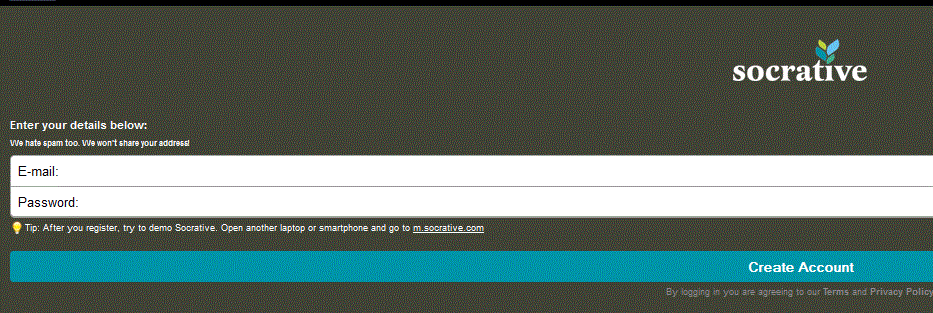
First, teachers need to create an account at the Socrative website. Students do not need an account, but we will explain why in a moment. Teachers can access Socrative by going to t.socrative.com or using the app available on iOS, Windows, and Android devices.

Once the account is created, students can access Socrative by going to m.socrative.com and using the app available on iOS, Windows, and Android devices. Students will need one thing to "log in" and that is the room number assigned to the teacher by Socrative.


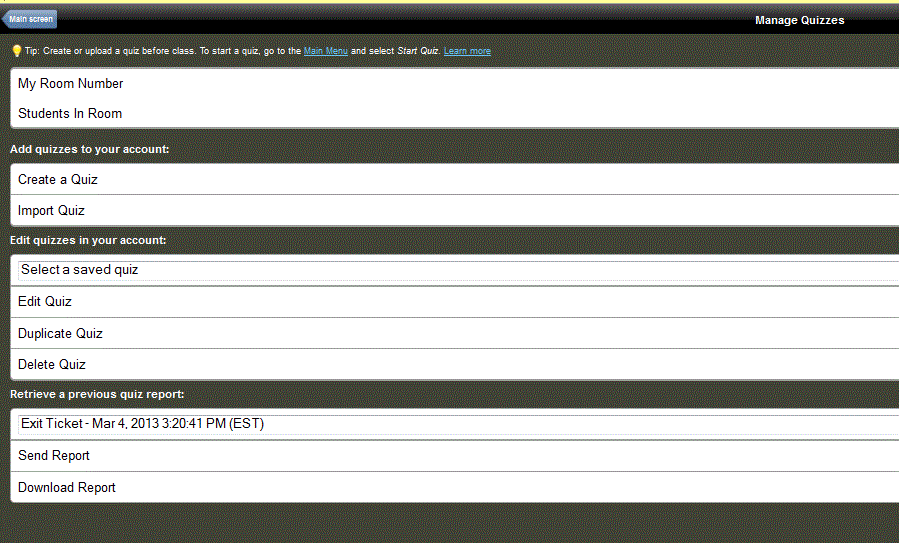
Teachers can create formal quizzes or do what I like to call "on the fly" assessing.  "On the fly" assessing allows teachers to stop and do an understanding check during a lesson. Formal quizzes can be multiple choice, true/false, or short answer.


Socrative also allows you the create exit tickets and a game called Space Race. Of course, data on how the students performed is always available through the reports.  You can also see "live data" as the students answer teacher paced questions, like "on the fly".

An example of  an "on the fly" question for students.

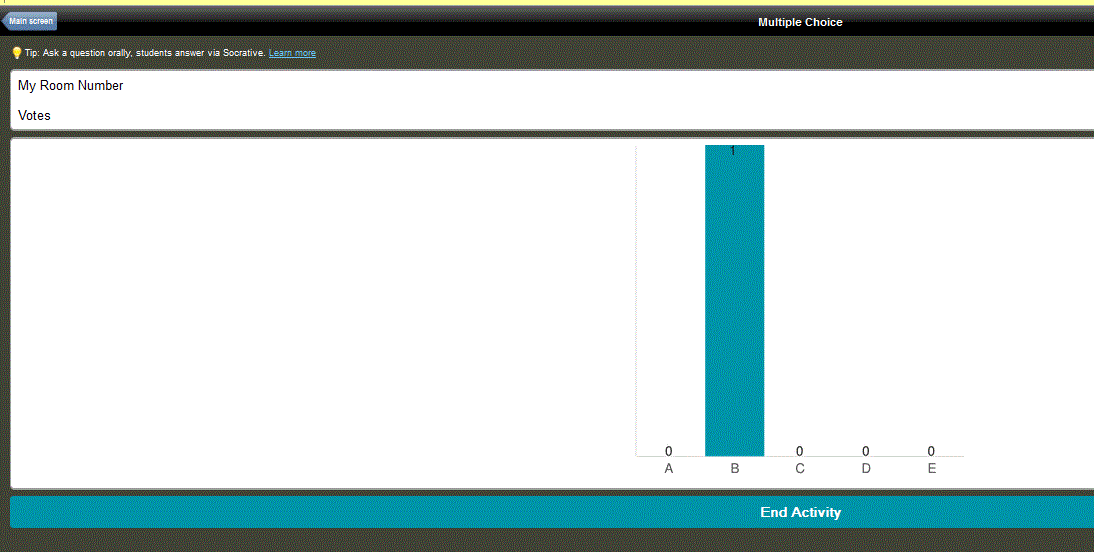
This is what the teacher sees as the students respond.

Socrative does offer user guides and helpful resources in the Socrative Garden. There is a Socrative 2.0 that I am excited to learn more about, so be sure to check that out!

Do you use Socrative?  What are your thoughts? Share your ideas!


Tuesday, February 18, 2014

mobile learning on mobile devices - Kahoot!

With more district moving to BYOD and BYOT policies, it is becoming critical to provide cross platform resources and suggestions to teachers.  Training can no longer be on just one program but rather how multiple resources can help a specific concept or standard.

In this blog series, We are going to look at a few mobile learning resources that can be used across a variety of platforms.  The first one we will look at is Kahoot!  I first learned about Kahoot! at FETC.  I actually heard it mentioned in two different sessions, so I made sure to check it out immediately.

Teachers start by going to getkahoot.com and creating a free account.

Once you have registered, you can sign in and start creating your first quiz, discussion, or survey.

After you have titled the quiz, you can start adding questions.  Questions can include images and videos taken straight from YouTube.  You can adjust whether the question is worth points and how long the students have to answer.


After you have added questions, you are ready to play with the students. When you launch the quiz, students can join using the website kahoot.it and the game-pin code. This game-pin code will change for every quiz. As the students join, their names will appear on the screen.

The questions will appear on the computer screen and the students will answer using their device. 


Your competitive students will enjoy Kahoot! After each question, students are ranked based on the speed at which they answered.

Kahoot is a great resource for lower elementary students because of its simply design. Secondary classrooms can also benefit from Kahoot because of its cross platform ability.

Have you ever used Kahoot? What are you thoughts?