
It is that time of year again - ISTE! Its the time when ed techies from around the world come together to learn, grow, share, and connect with each other. I have been fortunate to attend my 2nd ISTE conference.
So, with day 2 coming to a close (and day 3 just around the corner), I wanted to take a moment to get my thoughts about day 1 and day 2 out there. Maybe you have the same thoughts. Maybe yours are completely different. Either way, its a great start for a conversation on day 3.
Day 1 take aways:
~I was able to mark something off of my bucket list - present at ISTE. Its amazing how slow 5 minutes can be when you are standing in front of A LOT of people! Being part of the first Ignite Session was an honor and so powerful. I had the opportunity to share my passion and excitement for the Aaron Jones Family Interactive Center.
~The Bloggers Cafe is a great place .. period! Last year, I was intimidated of the Bloggers Cafe and thinking back I should not have been. This year I embraced the Bloggers Cafe and had the opportunity to catch up with ed tech friends I connect with on Twitter and make new connections/friends.
Day 2 take aways:
~There are some words that come to mind in a big way when I look over my notes, images, and the ever scrolling #ISTE2014 Twitter feed. Those words (for me) are:
connect
create ..and share
collaborate
cultivate
CONNECT - If you want to grow and learn, you need to find people and groups that will help you out. By connecting with others that have the same passion or interests, you can learn about different perspectives on a topic which will in turn help you grow and expand your knowledge and understanding. Connecting also shows you that you are not alone. There is no excuse for leaving ISTE without making at least one new connection!
CREATE - I have yet to see a session about how to create awesome worksheets. When I say create, I mean something beyond a multiple choice test. Create a video. Create a blog post. Create a visual for a project you do. When you create, then you next step (hopefully) is to share what you created. Don't be afraid to share. In one session, I believe Adam Bellow's, he said to share and don't worry if its perfect or complete, just share. Someone will find what you have to say interesting and relevant. Don't assume everyone already knows what you have to create and share.
COLLABORATE - This goes along with connect. I get excited when I see a group of teachers in an area connecting and collaborating on an idea to make something happen. Find someone who gets excited about the same thing as you and collaborate on making whatever that thing is happen.
CULTIVATE - We need to work towards cultivating thinkers in the classroom. This includes students and teachers. Does the classroom allow for students to just learn from you say or do they have the opportunity to think and explore for themselves. Are you cultivating future leaders or followers? The session on the Genius Hour and 20% time was such a great "you can do this .. so go did it" moment.
I am excited for day 3 of ISTE. I will enter the day knowing I will learn, grow, and meet others just like me!
Sunday, June 29, 2014

Wednesday, May 7, 2014
safely showing YouTube videos in class
YouTube offers a wide variety of educational videos that can enhance a lesson or activity. Unfortunately, you can also have non-educational ads and/or videos that may pop-up. There are resources out there that will allow you to show educational videos and remove the unwanted, non-educational stuff. One of those resources is safeshare.tv
Safeshare.tv is simple to use and should be a must resource for teachers that incorporate YouTube in their classroom!
Click here to see a quick video on how safeshare.tv works.
Safeshare.tv is simple to use and should be a must resource for teachers that incorporate YouTube in their classroom!
Click here to see a quick video on how safeshare.tv works.
Monday, April 28, 2014
a partner for digital writing - Popplet
Common Core State Standards ~ Writing Standard #6
~ Kindergarten-2nd Grade - With guidance and support from adults, explore a variety of digital tools to produce and publish writing, including in collaboration with peers.
~ 3rd Grade - With guidance and support from adults, use technology to produce and publish writing (using keyboarding skills) as well as to interact and collaborate with others.
~ 4th Grade - ....demonstrate sufficient command of keyboarding skills to type a minimum of one page in a single sitting.
When you read this standard, there are a few words that stand out most teachers are not 100% comfortable with - digital tools, technology, collaboration/collaborate, keyboarding. Popplet is one of many web resources teachers can use to help address those uncomfortable, techie words!
Popplet is a web resource that allows the user to create a graphic organizer/thinking map/bubble map. Popplet has a free and paid edition. I currently use the free edition, and love the potential!
First things first, you need to create an account. Once the account is created, you can start make your first Popplet. When you make a new Popplet, you will need to provide a title and select its background color.


~ Kindergarten-2nd Grade - With guidance and support from adults, explore a variety of digital tools to produce and publish writing, including in collaboration with peers.
~ 3rd Grade - With guidance and support from adults, use technology to produce and publish writing (using keyboarding skills) as well as to interact and collaborate with others.
~ 4th Grade - ....demonstrate sufficient command of keyboarding skills to type a minimum of one page in a single sitting.
When you read this standard, there are a few words that stand out most teachers are not 100% comfortable with - digital tools, technology, collaboration/collaborate, keyboarding. Popplet is one of many web resources teachers can use to help address those uncomfortable, techie words!
Popplet is a web resource that allows the user to create a graphic organizer/thinking map/bubble map. Popplet has a free and paid edition. I currently use the free edition, and love the potential!
First things first, you need to create an account. Once the account is created, you can start make your first Popplet. When you make a new Popplet, you will need to provide a title and select its background color.


You will start off with a blank screen, which is great because you have a blank canvas to work with! The bubble within Popplet are called Popples. These can be made by either double clicking on the screen or selecting "new popple" found under the tools icon.

Each popple can be moved by simply clicking and dragging. You can also increase and decrease the size of the popple.
A popple can include typed text, an image/video from either the web or your computer, or a drawing. You can also change the color of the popple. These four options are located on the bottom. The upper right corner provides a place for comments related to the popplet and the four gray circles will create and connect a new popplet.

Do you notice my name in the upper left corner? This is because I made the popple using my account. You can invite other users to join this Popplet. This will allow for collaboration among multiple users on one "document".


I have just touched the surface of what Popplet can do! Below are the other options until the tools icon. Popplets can be printed, exported, viewed full screen, etc!

Do you already use Popplet? Share your thoughts and ideas!
Friday, April 11, 2014
mobile learning on mobile devices - Infuse Learning
So far I have talked about two mobile learning resources, Kahoot and Socrative. The third resource I have recently learned about is Infuse Learning.
I first heard about Infuse Learning at ISTE 2013 and then again at FETC 2014. I figured it was time for me to check it out!
Infuse Learning is a cross platform assessment platform for teachers and students. To start, teachers create a free account at www.infuselearning.com. Once the account is created, teachers could start with on the fly questions or dive in a little more with creating assessments and classes.
Lets go back to the account creation. Once created, you will see this screen...


Notice, there are no answers next to the multiple choice options. The students either have something in front of them or something was asked verbally.
The other Quick Assessments include:
- Draw Response - The students can draw their answer and submit it.
- True/False - The students can select true, false, or don't know.
- Multiple Choice - The students can select from a section, depending on how the teacher creates it.
- Sort in Order - The students can place multiple items in order, depending on how the teacher creates it.
- Open Ended Text Answer - The students type in their answer.
- Numeric - The students type in a number answer.
- Likert Scale - The students select depending on how the teacher creates it.
If you want a more formal assessment, you can create a quiz within quiz management.


I first heard about Infuse Learning at ISTE 2013 and then again at FETC 2014. I figured it was time for me to check it out!
Infuse Learning is a cross platform assessment platform for teachers and students. To start, teachers create a free account at www.infuselearning.com. Once the account is created, teachers could start with on the fly questions or dive in a little more with creating assessments and classes.
Lets go back to the account creation. Once created, you will see this screen...
The enrollment type for my session is open. In order for students to join, they go to student.infuselearning.com on any device that has Internet access. The screen will prompt the student to enter the Room ID (located on the upper left corner) and their name.
The Quick Assessment question types are what I call "on the fly" questions. You can ask these at any point during a lesson or activity. These do not require any prep before hand, hence the name.
For example, if you were to ask a multiple choice question, the students would see this on their device's screen.
The other Quick Assessments include:
- Draw Response - The students can draw their answer and submit it.
- True/False - The students can select true, false, or don't know.
- Multiple Choice - The students can select from a section, depending on how the teacher creates it.
- Sort in Order - The students can place multiple items in order, depending on how the teacher creates it.
- Open Ended Text Answer - The students type in their answer.
- Numeric - The students type in a number answer.
- Likert Scale - The students select depending on how the teacher creates it.
If you want a more formal assessment, you can create a quiz within quiz management.
There is more to Infuse Learning than I have talked about, so if these features excite you then I encourage you to check it out!
Friday, March 14, 2014
mobile learning on mobile devices - Socrative
My district, like may others around the US are looking at becoming a BYOD/BYOT district. With the introduction of various devices, the need for cross platform resources is a must! In my first post on this topic, I talked about KaHoot! Today's resource is a rather popular mobile learning resource - Socrative.
I first learned about Socrative last year from my PLN and again from a teacher in one of our elementary schools. She was using Socrative with the laptop cart from the library. This year, I have seen students using Socrative with iPods/iPads as well. That is what is so great about Socrative, it is not device or platform specific.




I first learned about Socrative last year from my PLN and again from a teacher in one of our elementary schools. She was using Socrative with the laptop cart from the library. This year, I have seen students using Socrative with iPods/iPads as well. That is what is so great about Socrative, it is not device or platform specific.
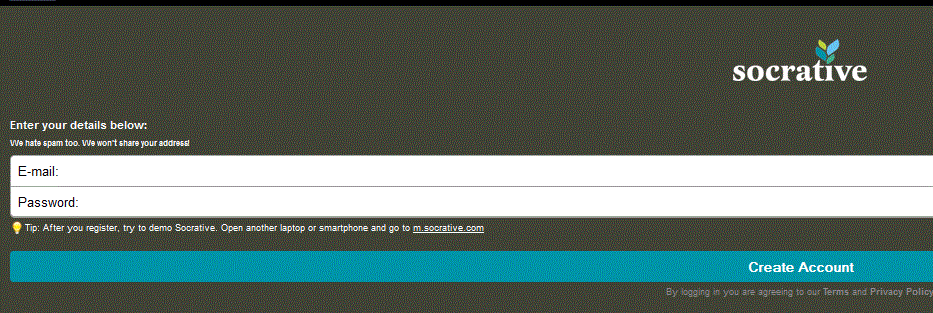
First, teachers need to create an account at the Socrative website. Students do not need an account, but we will explain why in a moment. Teachers can access Socrative by going to t.socrative.com or using the app available on iOS, Windows, and Android devices.
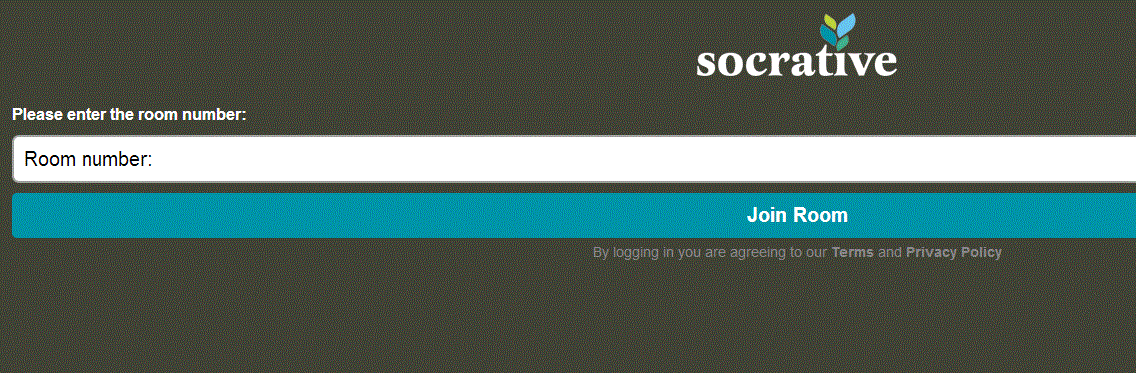
Once the account is created, students can access Socrative by going to m.socrative.com and using the app available on iOS, Windows, and Android devices. Students will need one thing to "log in" and that is the room number assigned to the teacher by Socrative.
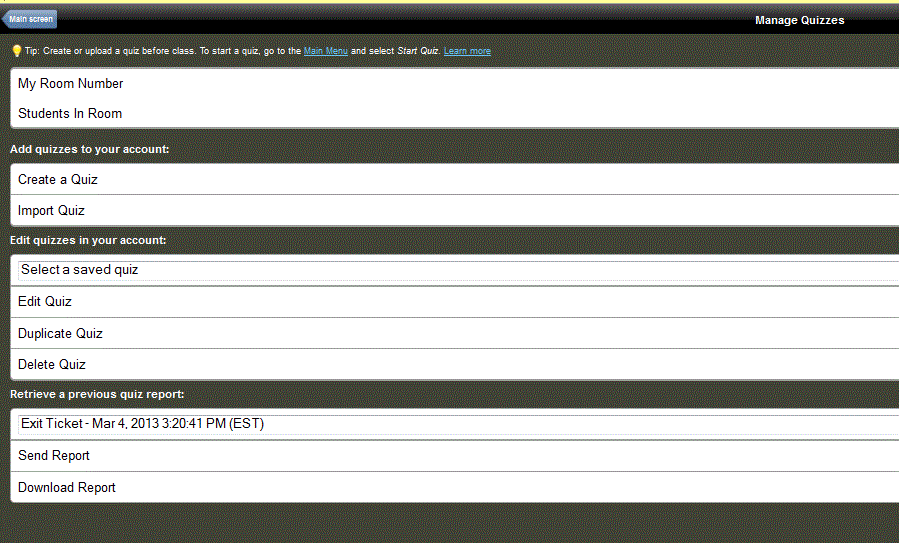
Teachers can create formal quizzes or do what I like to call "on the fly" assessing. "On the fly" assessing allows teachers to stop and do an understanding check during a lesson. Formal quizzes can be multiple choice, true/false, or short answer.
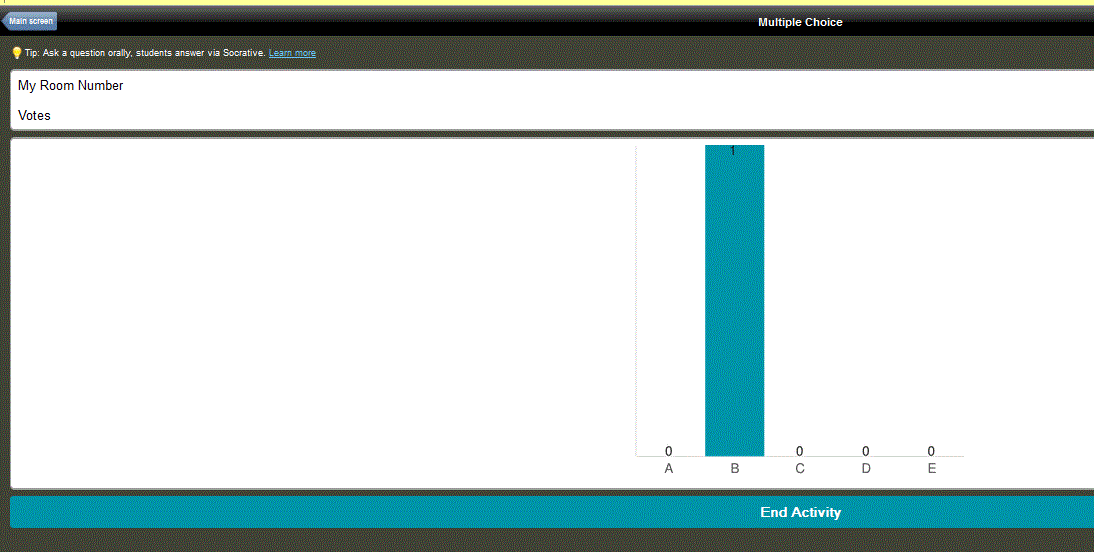
Socrative also allows you the create exit tickets and a game called Space Race. Of course, data on how the students performed is always available through the reports. You can also see "live data" as the students answer teacher paced questions, like "on the fly".
An example of an "on the fly" question for students.
This is what the teacher sees as the students respond.
Socrative does offer user guides and helpful resources in the Socrative Garden. There is a Socrative 2.0 that I am excited to learn more about, so be sure to check that out!
Do you use Socrative? What are your thoughts? Share your ideas!
Sunday, March 2, 2014
Mississippi Common Core Collaboration
The MS Common Core Collaboration Group is about to turn one year old in April! This group is definitely a labor of love. I know we are just beginning, but this group will have a huge impact on stakeholders finding and better understanding the Common Core State Standards.
The mission of the Mississippi Common Core Collaboration is the facilitate preparedness and ensure success in achieving the expectations established by the Common Core State Standards.
There are three ways to connect with the MSCCC. LinkedIn, Twitter, and our resource website.
(1) MSCCC PLC on LinkedIn
There are current 1839 members on our PLC through LinkedIn. Members include teachers, administrators, state department employees, college instructors, and education groups. The PLC's main goal is to provide a place for members to get together and share/learn/grow on all things Common Core. You do need a LinkedIn account to join, but that is free and easy to do. Click on the Link to check us out! http://tinyurl.com/nhvsbnn
(2) MSCCC on Twitter
We know how awesome Twitter is on access PD 24/7. That is why we are there! We share and search for resources and news articles that focus on better preparing teachers, students, and parents on the Common Core. You can find us at @MSCCCollaborate.
(3) Mississippi Common Core Collaboration website
This site will be the go-to resource for Common Core. It is still a work in progress, but resources are added daily. The current website address is www.msccc.net. The site allows you to search by standard to find resources.
If you are not an educator in Mississippi, its ok! We still encourage you to join this great group!
The mission of the Mississippi Common Core Collaboration is the facilitate preparedness and ensure success in achieving the expectations established by the Common Core State Standards.
There are three ways to connect with the MSCCC. LinkedIn, Twitter, and our resource website.
(1) MSCCC PLC on LinkedIn
There are current 1839 members on our PLC through LinkedIn. Members include teachers, administrators, state department employees, college instructors, and education groups. The PLC's main goal is to provide a place for members to get together and share/learn/grow on all things Common Core. You do need a LinkedIn account to join, but that is free and easy to do. Click on the Link to check us out! http://tinyurl.com/nhvsbnn
(2) MSCCC on Twitter
We know how awesome Twitter is on access PD 24/7. That is why we are there! We share and search for resources and news articles that focus on better preparing teachers, students, and parents on the Common Core. You can find us at @MSCCCollaborate.
(3) Mississippi Common Core Collaboration website
This site will be the go-to resource for Common Core. It is still a work in progress, but resources are added daily. The current website address is www.msccc.net. The site allows you to search by standard to find resources.
If you are not an educator in Mississippi, its ok! We still encourage you to join this great group!
Thursday, February 20, 2014
Oh So Many iPad Apps - new blog adventure
I am constantly looking for educational apps and ways students can use the iPad in the classroom. I have found that I am not very organized with my findings, meaning they are not in one central location. With that in mind, I decided to start an iPad app blog and Pinterest board. I don't have much there ..YET... but I am working on adding more resources.
Enjoy!
Oh So Many iPad Apps

iPads in the Classroom

Enjoy!
Oh So Many iPad Apps
iPads in the Classroom
Subscribe to:
Posts (Atom)


