Sunday, January 26, 2020

Conduct a Data Privacy Check-up!


January 28th is Data Privacy Day. This is a great time to conduct a check of your personal and work accounts, to ensure YOUR data is private and secure. Let’s look at how to keep your social media, passwords, and email protected.

Do you have a social media account?  Most likely, the answer is yes! According to the Pew Research Center, 72% of US adults have at least one social media account. The next time you log into your Facebook, Twitter, or Snapchat account, take a moment to check your privacy settings. Who can view your account and the information you post? 

You also want to check the privacy settings on your devices as well. This includes your smart devices, like Amazon and Google, and your gaming consoles.  What information are you sharing? 

Check out StaySafeOnline.org to find out more information on updating your privacy settings on a variety of sites, apps, and devices.

Following a few simple password protection tips can help keep you and your data from being compromised. 

The first tip is to not use the same password for all of your accounts. You want to use unique passwords for each account you have. Yes, this can be a pain, but this keeps you and your data protected. 

When creating a password, you want to use something you will remember but at the same time, something others won’t figure out. One way to create a password is one that includes a mixture of uppercase and lowercase letters as well as numbers. Another way is to create a phrase of short words or even a sentence that you would remember.

Two-factor authentication is also a good way to protect your data. When checking your privacy settings, see if two-factor authentication is available. When two-factor authentication is enabled, you have to confirm your identity in two ways.  One example of this is submitting a password and a verification code that is sent via text message or email.

Email accounts can quickly become filled with work requests, shopping discounts, bill payment reminders, messages from family, and spam. Keeping all of these emails in one account can put you at risk. First, use your work email account for only work related communication. Using your work address to sign up for a coupon website could put you and your company at risk.

When it comes to personal email accounts, consider having more than one.  Use one for family and school communication and a second for your favorite stores and brands.  

Don’t let January 28th be the only time you think about data privacy.  Continue to educate yourself and keep you and your data private and secure!

Friday, October 18, 2019

Get Students Talking With Digital Tools - Looking At The Tools

Earlier this month, I had the opportunity to conduct a webinar with Simple K12. The topic was on I have discussed before, students talking with digital tools.

Students have A LOT to say.. just ask any K-12 teacher.  However, with some guidance and the right tools, students can share their thoughts, knowledge, and passions to a global audience.

When you think of students talking, you immediately go to the Speaking and Listening standards under ELA. The idea of using your voice doesn't have to stay in the ELA classroom though. Students can flex their voice in math, science, and social studies too.

Let's look at three tools students can start using today.

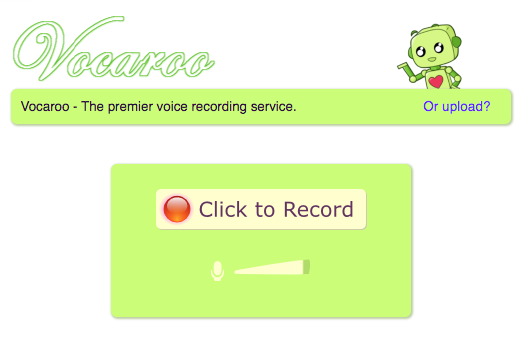
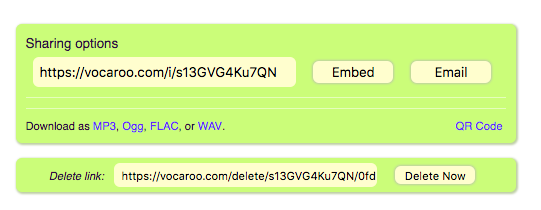
The first is Vocaroo.  I have shared about Vocaroo for several years. (previous post on Vocaroo) Vocaroo is a simply, web based program that allows students to record and share their recording.  Students in K-12 can use this tool!  The sharing options are great .. link, MP3, WAV, and even a QR Code. Side note, the recordings do not last forever, so if it is something you want to keep for years, download and save it.


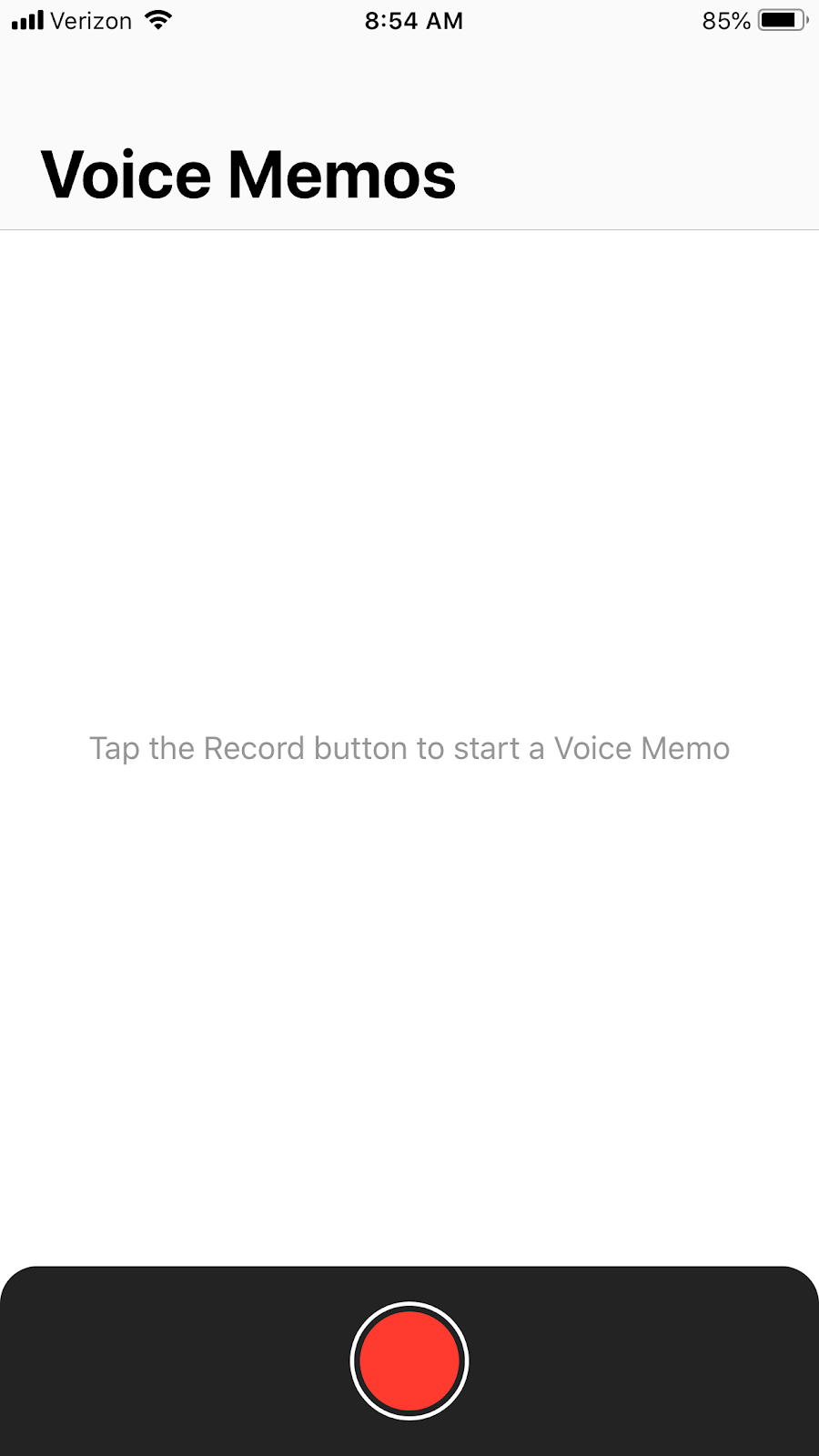
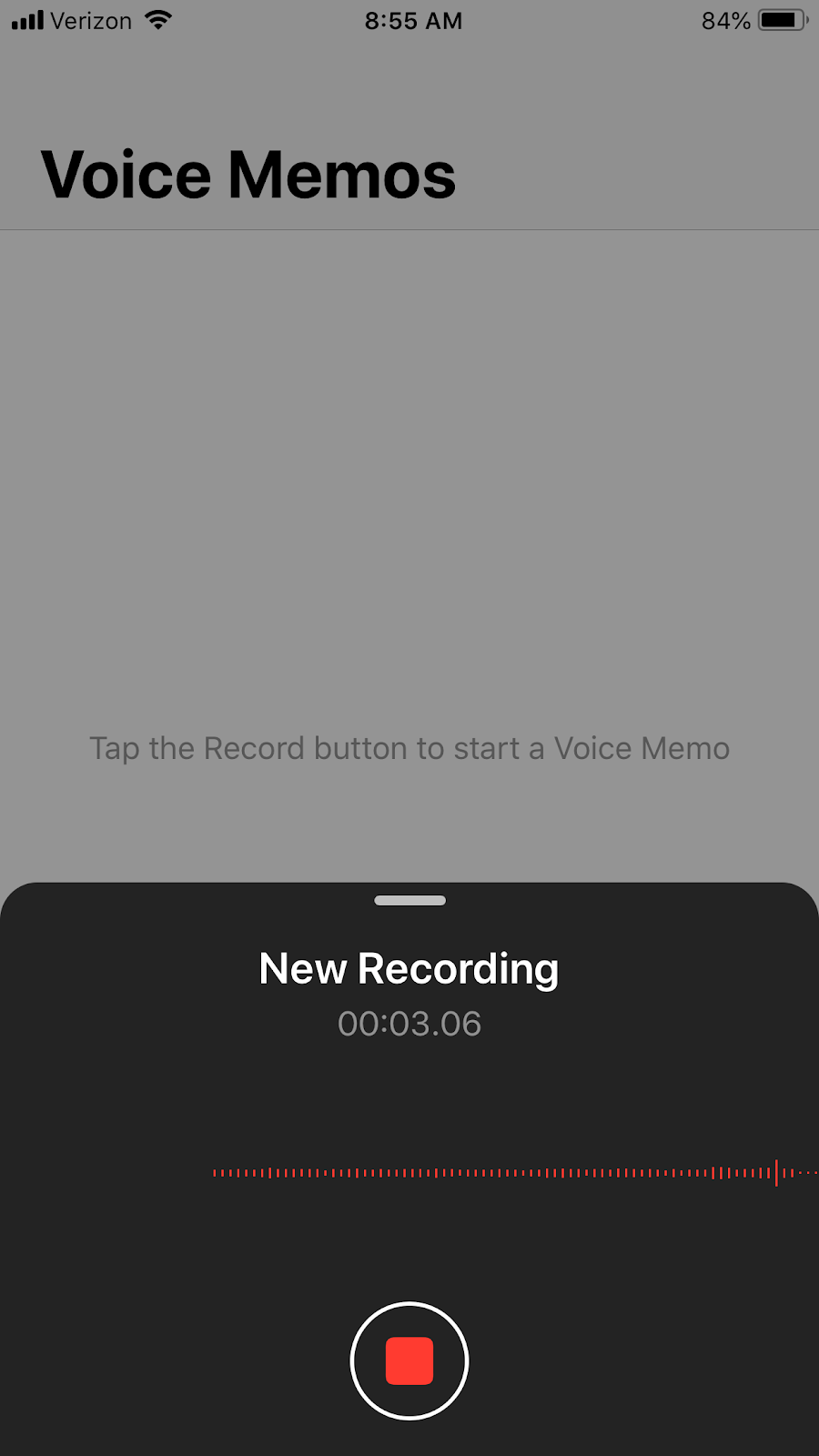
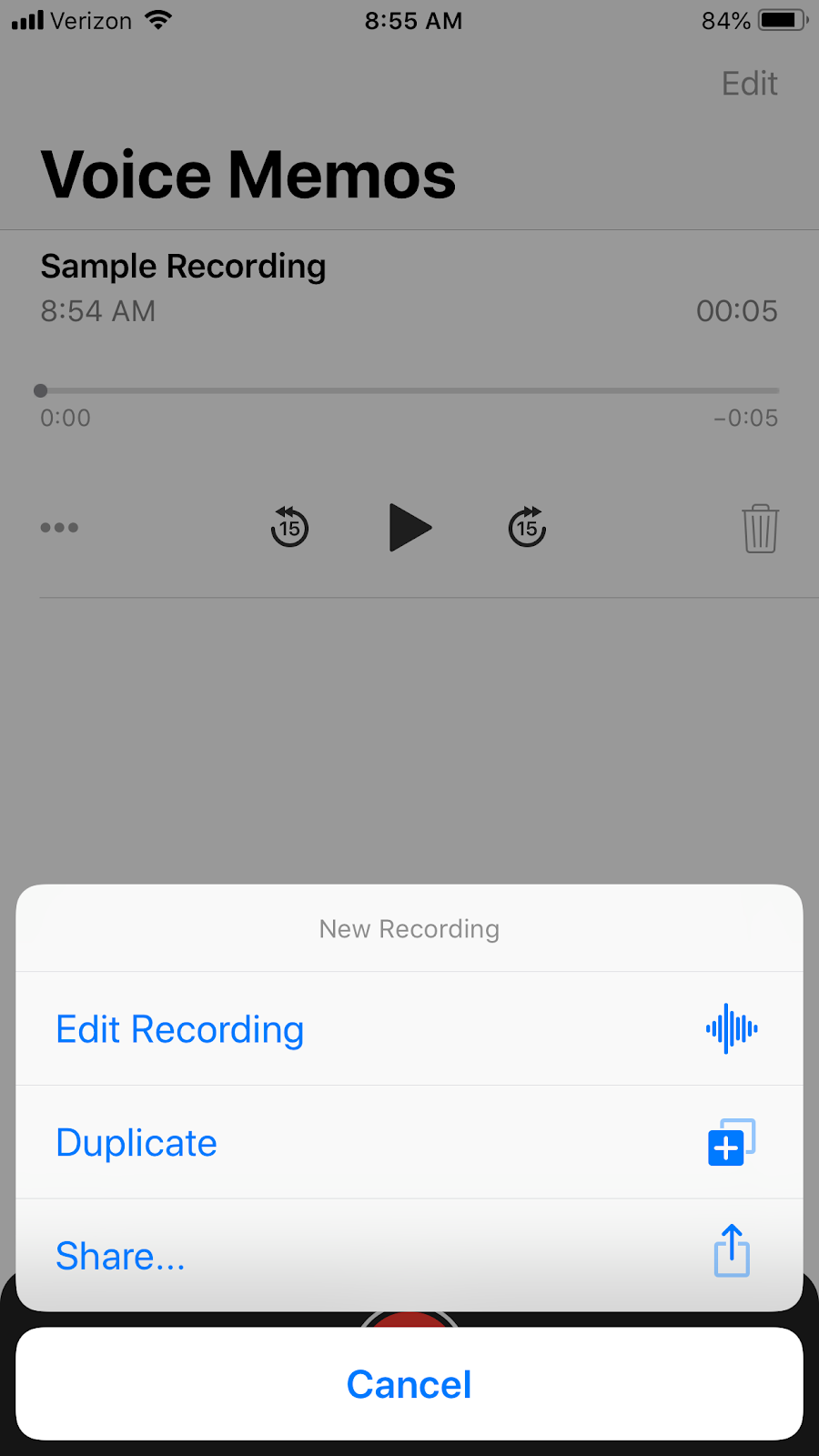
Voice Memos is one that most of us have at our fingertips, but don't realize it.  Voice Memos is an iPhone / iPad app that appears simple but is pretty powerful. Like Vocaroo, just about anyone can use Voice Memos to create a recording. Once recorded, you can edit the recording and simply save and share. Depending on what accounts you have connected to your iPhone / iPad, you could share via Google Drive or iCloud.


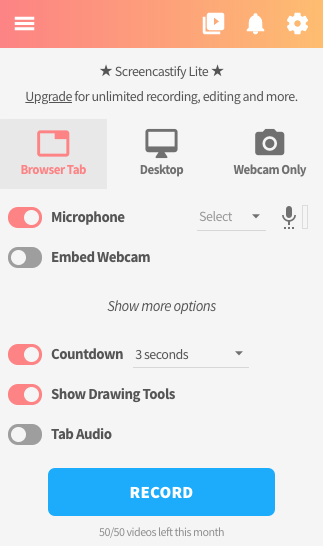
The third tool is a Chrome extension, Screencastify. This extension allows you to not only record your voice, but your screen and webcam as well.  There is a free and paid version.  The free version provides 50 videos per month and a limit of 10 minutes per video. You can share the videos to your Google Drive with the free version, which is a great plus!


As always, if you teach students 13 years old and under, have a conversation with your technology department prior to using any tool with your students. You want to make sure the tools you select have been vetted by the department and are appropriate for use.

Some other tools worth mentioning include Audacity, Explain Everything, and Twisted Wave.

In the next post, we will talk about different activities students and teachers can use in the area of speaking and listen in all subject areas.

Do you have a tool you love using? Share that with us!

Friday, June 28, 2019

8 Weeks of Summer Blog Challenge - Week 2


This post is week 2 of 8 in the 8 Weeks of Summer Blog Challenge for educators.  This week's prompt is "Ponder Your Professional Past: What has contributed to the educator you are today?".

I'm the educator I am today because of my mentors and the friendships I have made in career. Each one provides me guidance, advice, and knowledge that helps me be a better educator every day.

Some of my mentors I have never met in person, but because of Twitter.  Some of my Twitter mentors I have had the privilege to meet because of conferences. I have access to them and their wisdom because of Twitter. Can you tell I like Twitter??

Some of my mentors have been my friends and in my life for many years. We have been their for each other during higher education degrees, changes in jobs, and life's moments.

Some of my mentors are previous bosses and co-workers. Their knowledge and valued experiences have helped me grow. In some cases, I have also learned what not to do, because of their experiences.

I'm the educators I am today because of the people I have been able to surround myself with. I want to continue to surround myself with great mentors and friendships so I can keep growing and keep becoming a better educator.

Want to check out week 1? You can find it here.

eva

Tuesday, June 25, 2019

8 Weeks of Summer Blog Challenge - Week 1

This post is week 1 of 8 in the 8 Weeks of Summer Blog Challenge for educators. I am so excited that I found this challenge on Penny Christensen's LinkedIn. I am a few weeks behind, but won't stop me.

This week's prompt is "Planned Professional Growth: What are your professional learning goals for this summer".

The month of June is normally a slow month for my department, unless we have a big project on the calendar. July is when everyone starts getting ready for the start of school.  For us, the first day of school is normally the 2nd week of August.  You can easily let June and July come and go without even realizing it.

Since June is just about done, I am setting one professional learning goals for the remainder of my summer.

READ!
I don't read nearly enough.  I listen to podcasts, but I don't read.  I buy the books and find the blogs, but I don't take the time to read them.  I would like to carve out some time each day to get some professional reading done.  Maybe I can carve out less time on social media scrolling!

My current professional books include Essentialism: The Disciplined Pursuit of Less, Leaders Eat Last, and a soon to have advanced copy of Boss Up!.

So why just one goal? Well, I am looking at my July calendar and know better! Also, I know I won't be able to read these three books in one month. This will allow me to continue to goal into August. I can also add another goal once school starts as well.

What are you reading this summer? What should I add to my list?

eva


Thursday, December 20, 2018

Bringing AR and VR into the Classroom; Part 2

In Part 1, we looked at why virtual reality is a good fit in today's classroom. We also talked about different types of VR set ups you could check out.  In this post, we are going to look at all the resources!  I am all about free and secure, so unless stated, these are free resources you can use in the classroom.

The first resource I want to talk about is the one most popular in my district - Google Expeditions.


Google Expeditions allows the students to explore a huge variety of VR locations all while the teacher is guiding them.  For this resource, the teacher will need a device along with the students.  The teacher selects the expedition or field trip, the students join, and then the learning and exploring begins. I have seen students from elementary to high school using Google Expeditions.  The best part is watching a student or class explore for the first time!

New expeditions are added regularly!  Teachers have also created lessons to go allow with several expeditions.  You can see the full list here. You can also learn more about Google Expeditions here.

While we are talking Google, we need to also mention Tour Creator. This allows you to create your own virtual tours using Google Maps.  I mean, how awesome is that!!

For example, after reading Patricia Polacco's book John Philip Duck, the students can explore the Peabody Hotel and other sites around Memphis using the Tour Creator that you created. You could also create a tour of your state capital, your hometown, the US capital, and so many other places!


Discovery VR brings their shows to "life" through VR.  Users can explore Shark Week, Deadliest Catch, and so much more.  This is not teacher guided, so you will want to explore before hand and have clear directions and/or expectations for students.

Discovery VR can be used on a variety of VR devices. They also add content regularly.


Do you use Nearpod in the classroom?  If so, have you checked out Nearpod's VR lessons? What is great about Nearpod VR is you don't need a headset to experience them. There are 36 free VR lessons available you can check out if you don't have a paid subscription with Nearpod.


Two other notable VR resources are NYT VR, New York Times VR and 360cities.  NYT VR would be a good resources for secondary schools.  This app brings the New York Times headlines to life. This is one where the teacher will want to explore first and select the best resource to meet the lesson or discussion in the classroom.

360cities is not an app at all, it is a website. You can explore Mars, New Years celebrations around the world, and so much more!  This is not a resource you want students to explore, but rather for you the teacher to use to enhance a lesson.

These are just a view VR resources you can use in the classroom.  If you are looking for more, these are few places to check out:

Richard Bryne's Free Tech for Teachers website

Cybrary Man's Educational Websites - Virtual Reality

Do you have a favorite VR resource? Share with us!

In the next post, we will explore AR (augmented reality).

Tuesday, December 4, 2018

Bringing AR and VR into the Classroom; Part 1

When I was in school, I had to use a photo in a book to help bring to life a foreign place or time in history. Today, students can use virtual reality! Virtual reality (VR) is a computer generated environment that feels real to the user.

In the February 2017 edition of Eurasia Journal of Math, Science, and Technology Education, virtual reality was discussed in the article, Virtual Technologies Trends in Education. In the article, they discuss four advantages of using virtual technologies in the classroom. These included:

(1) increased student motivation and engagement
(2) a constructivist approach to learning
(3) more interaction than conventional learning materials
(4) accessibility and affordability

These advantages are on point!  Student engagement and the constructivist approach both help the students learn and feel more apart of the lesson.  Think Chinese proverb!

Tell me, I’ll forget
Show me, I’ll remember
Involve me, I’ll understand

In a world of devices and immediate information, interaction within a lesson is a great plus. Now don't get me wrong, there is a time and place to sit and focus as well.  My job has a lot of that! However, VR (and AR) really hit on some advantages that can benefit student learning.

On the 2017 Speak Up Survey, participants were asked which tools or strategies they felt held the greatest potential for increasing student achievement and success. Twenty-eight percent of teachers surveyed stated VR.

So, knowing that VR is affordable and a good resource to increase engagement and achievement, lets look at where to begin!

You need to decide on the hardware.  As a technology director, I encourage you to include your technology department in this decision!  When looking into a system, you want to consider your price range, network connections, if you want to have a teacher guided option, and storage/charging. You can have hardware that includes a headset and device or an all-on-one system.  For example, you can purchase Google Cardboard for roughly $15 and an iPod or Android device. You could look on the upper end of the price range and check out the Oculus Go.

Note, there are several types of head sets on the market!  Again, this is when your technology department comes in handy - ask for assistance! You don't want to purchase something that isn't compatible with your current infrastructure or AUP.

This is the VR carts we use in my district.


One cart includes 25 student use iPods, 1 teacher use iPad, 25 VR goggles, a Tech Tub cart for storage/charging, and a tub from Lowe's to store the goggles.

We went with the head set/device system because we wanted to be able to guide the students using Google Expeditions, but more about that app (and others) in another post.

We also have started making mini VR kits for our schools. These kits include iPods, Merge Cubes, and Merge AR/VR goggles. (Find out more about Merge here) These kits were designed for a small group setting. 

It really depends on what will best meet your needs and your budget!  Speaking of budget, if you are not taking advantage of Donors Choose, they make sure you check it out after reading this post!  We have teachers who receive classroom sets of books, Chromebooks, and everything in between. If you have questions about Donors Choose, ask my friend Angela Sievers! She is a Donors Choose Ambassador.

In the next post, we will look at some great VR apps you can use in the classroom.

Do you use VR already? Share your ideas and experiences with us!

Thursday, October 4, 2018

Digital Citizenship Week and Cyber Security Awareness Month


October is National Cyber Security Awareness Month. Digital Citizenship Week is also in October, October 15-19.

These are some resources that can be used by students, employees, and parents to help promote and gain a better understanding of cyber security and digital citizenship.

Digital Citizenship Week - October 15-19
The first place to start for digital citizenship is Common Sense Media. CSM provides a free K-12 digital citizenship curriculum that can be integrated in the classroom or computer lab.

Check out the "4 Ways to Get Started Teaching Digital Citizenship" resource. You will need to create a CSM account in order to access the suggested resources.

You can encourage parents to take part in Digital Citizenship Week by taking the #DeviceFreeDinner challenge and/or sharing family engagement resources from Common Sense Media.

For elementary students, include one of these books during read aloud time to help discuss digital citizenship.

For secondary students, you can discuss ways to check facts online. Use this article from ISTE to help you get started.

For teachers on Twitter, search for #DigCit and connect with other educators discussing digital citizenship.


Cyber Security Awareness Month
2018 is the 15th year for Cyber Security Awareness Month. This month's overarching theme is "Cybersecurity is our shared responsibility and we all must work together to improve our Nation’s cybersecurity.".

Department of Homeland Security provides Cyber Security resources for K-12 classrooms. Check out Be Cyber Smart.

For parents and employees, check out the good online safety habits from STOP, THINK, CONNECT. These habits include:

- keep a clean machine
- protect your personal information
- connect with care
- be web wise
- be a good online citizen
- own your online presence


How are you promoting and/or teaching about cyber security and digital citizenship this month? Share your ideas with us!

Tuesday, March 27, 2018

Making a necessary evil fun and engaging!

Student assessment. It happens in schools all around the US .. all the time! Student assessment can make your extremely nervous. It can also make you wish the class period would never end.

I had the chance to share some online assessment resources with a group of teachers in February. They could name all of the icons below... except one!


They couldn't figure out the top, left icon. That is the icon for The Answer Pad.

The Answer Pad, like the other programs, allows your to assess students in an interactive format.

One thing I like about The Answer Pad is the fact you don't have to have a certain device. You can access it from the website, iOS app, or Android app. This means BYOD classes can use The Answer Pad as well as a one-to-one environment.

Once you create your account, you can start using The Answer Pad without having to enter the first student or question. This is a plus for me!  This means one less login/password for students (and me) to remember. I can also ask questions on the fly, which means I am prepared for those teachable moments.

When you select the Quick Connect feature, students enter the session with a Connect Code.  Once they are in the session, you can ask a variety of questions. I personally love the drawing question. This may be a little difficult with a mouse, but it forces the students do to more than mark a letter.


The Likert Scale question is also a good question for self assessment.  Ask the students who well they feel they understand the material.


You will see the student answers on your screen, which allows you to quickly check who does and does not understand the concept being assessed.

This is an example of a student, Eva, selecting thumbs up for the Up/Down question.

The Answer Pad also allows you to create student accounts and make assessments ahead of time.  You can also pay a yearly fee for more features. 

For me, however, I like the options available to me in Quick Connect. I can assess my students on the fly using multiple question formats. It doesn't matter the device type and I can see the student responses immediately and adjust the lesson accordingly.

Have you ever tried The Answer Pad?  If so, tell us about your experience!

Monday, November 27, 2017

Computer Science Week and Hour of Code

It is almost that time again -- Hour of Code and Computer Science Education Week. This year, Computer Science Education Week is December 4-10, 2017. This is a great opportunity to ignite or continue to ignite student excitement for Computer Science by participating in the Hour of Code.

The Hour of Code can take on many forms! You can stop everything and have the entire school or entire grade level participate in coding activities for one hour. Students can participate in coding activities during their computer lab time. Students can participate in activities where they see the connections between Computer Science and Math, Science, and Language Arts. Students could even learn the history behind what we celebrate during Computer Science Education Week.

Where to begin!

The first place to start is with the below three websites:
www.hourofcode.org
www.CODE.org
https://csedweek.org/

These sites provide great resources for getting started on promoting the Hour of Code as well as a wealth of activities. Data USA can provide great talking points about Computer Science jobs, demographics, colleges, and much more. You can find that resource here.

Non-Tech Activities
The Hour of Code does not have to include the Internet or a device! There are several non-tech resources out there. You can find several at CODE.org and CSUNPLUGGED.ORG

​The non-tech activity, Color by Numbers, talks about pixels and has the students create drawings based on pixels. You can find this activity here.​ This is just one activity from CS Unplugged.

Devices and Apps

​There are several devices out there that help get the students excited about coding. These include Dash and Dot, Sphero, and Makey-Makey. If you have one in your classroom or school, check out their websites to find more resources and/or ideas for incorporating these into your Hour of Code activities.

Another great resource is iPad apps. These are just a few:
Hopscotch
Daisy the Dinosaur
Lightbot: Code Hour
Scratch Jr.

​Don't forget the experts in your building! Your computer lab managers, PLTW teachers, and CS teachers.​ Ask them how you can incorporate coding into your classroom.

The goal of Hour of Code is to ignite a passion for Computer Science in our students! You may have a future Steve Jobs or Grace Hopper in your classroom.

What will the Hour of Code look like in your classroom this year? Share your resources and ideas with us!

Thursday, October 12, 2017

The Math Learning Center - An Interactive Resource for the Classroom

I saw a tweet a few days ago on Twitter I should have taken a screenshot of! The tweet talked about how worksheets should be used as a form of punishment.  I love that!

The tweet reminded me of a math resource I have shared with teachers in the past - The Math Learning Center.

The Math Learning Center has 10 interactive math apps students can explore on the computer or iPad. The interactive math apps include:
- Fractions
- Geoboard
- Math Vocabulary
- Money Pieces
- Number Frames
- Number Line
- Number Pieces
- Number Pieces Basic
- Number Rack
- Pattern Shapes

The Geoboard app is always a favorite of mine!  As a 2nd grade teacher, rubber bands would end up in the air or broken when we used the geoboards to explore geometry. With the Geoboard app, you don't have to worry about rubber bands.


The Number Pieces app provides the students with a board to construct, deconstruct, and compare numbers.


These are just two of the 10 apps available.

Have you used The Math Learning Center in your classroom? Which app do your students enjoy? How have you used them in the classroom?

Share your ideas with us!

Friday, June 23, 2017

Digital Citizenship 101

Are you part of the 46% of smartphone owners who can't live without their device?
Do you spend the majority of your day in front of a screen?
Are you one of the 17.6 million US residents that experienced identity theft in 2014?

Without digital citizenship as a part of K-12 education and beyond, the answers to the above questions will become more and more alarming!

There was several resources out there to help educators with discussing the multiple areas of digital citizenship with students of all ages.

Common Sense Media
This is probably my most favorite digital citizenship resource for K-12 educators.  CSM provides a free K-12 curriculum for educators. The lessons are divided into grade levels and units. Each lesson is approximately 45 minutes, but can be divided into small chucks with ease.  I love how everything is right there for you. You don't have to feel nervous about discussing the topics, because of how CSM has it laid out for you.  There are also several digital resources available as well as student and parent resources in multiple languages.

InCtrl
These lessons are geared toward 4th - 8th grade.  There are lesson plans and video resources available for teachers and students.

ConnectSafely
This is a great resource for parents and teachers.  This site has great resources, blog posts, and suggestions on all things digital.  I had the chance to hear Kerry Gallagher at FETC, which drew me to this resource.

Classroom Read Alouds
I came across this blog post that talked about digital citizenship read alouds.  Ten minutes later I found several other books you can use to discuss various digital citizenship topics with students in both lower and upper elementary.

Some of the books include:
Goodnight iPad, by Ann Droyd
If You Give a Mouse an iPhone, by Ann Droyd
Webster's Email, by Hannah Whaley
Webster's Friend, by Hannah Whaley
The Pirates of Plagiarism, by Lisa Downey
Bully, by Patricia Polacco

There are also resources out there for you, the educator!  If you have on Twitter, do a search for #digcit. This is a a great hashtag related to all this digital citizenship.  You also want to check out Susan Bearden's book, Digital Citizenship. These two resources are a great start to learning more and becoming more familiar with digital citizenship.

Do you have a great resource, share with us here!


Friday, January 6, 2017

Everything online is NOT true!


Have you come across this image in your Facebook feed?  This was something I saw shared more than once around Jan 1st and Jan 2nd.  People were sharing this image, thinking "how cool is this", without realizing 1-1-2017 was on a Sunday.  It's so easy to click "share" that we forget to use common sense sometimes.

Children and adults are presented with mountains of information on a daily basis. From the news to our social media feeds to our friends and family, information is everywhere.  Some many people (children and adults) have gotten into the "It's online, so it must be true" mindset, that images like the one above is shared and liked without doing a simply check on the calendar.

We have to teach our students (and ourselves) how to determine what is true and what isn't online.

Three Great Places to Start
The first place teachers can go to find some great critical evaluation, is at Kathy Schrock's Critical Evaluation website. This website provides some great resources and information teachers can use to better prepare themselves and their students when it comes to evaluating information online.

A second resource teachers should check out is November Learning.  Alan November provides some great resources for teachers on information literacy.

Of course the Digital Citizenship Curriculum by Common Sense Media provides lessons for grades K-12 that include evaluating information online. These are a must in every classroom!

Four Answer Worthy Questions
(1) Does the website have an author and/or publisher?
(2) What is the URL?
(3) Is the information current?
(4) Is the information reliable?

The four questions above are a great checklist when evaluating websites and the information they contain.

Does the website have an author and/or publisher?
You want to find the author and/or publisher of a website. Is the author and/or publisher a reliable source? Don't think just because you find the author's name that the information is reliable.

What is the URL?
The extension of a URL can tell you alot!  Extensions like .edu (education) and .gov (government) are for specific groups. Extensions like .com (companies) and .org (non-profit) can be purchased by anyone.

Is the information current?
Look for a date. When was the information posted, updated, or created?

Is the information reliable?
As you read the information, think about the author's purpose.  Are they trying to sell you something or push you toward one view vs another?  Also, try to find the same information on a different site. This will help you cross reference the information.

Being a critical evaluator of websites and information can help ensure you are not sharing images like the one so many did just a few days ago!

Do you have any resources you use to evaluate websites?  Share your resources with us!

eva

Thursday, October 13, 2016

Digital Citizenship Week


Next week is Digital Citizenship Week.  Although this topic should be taught 24/7, we can use next week to stress the importance to education stakeholders like parents and community members. 

If you do a Google search for digital citizenship resources, you will come up with some great resources! Below are some I have shared with fellow educators.

The number 1 resource is Common Sense Media! If you have never explored the Common Sense Media website, stop right now and check them out! CSM offers a free, K-12 Digital Citizenship curriculum. The lessons are 45 minutes each and provide teachers with a guide for how to discuss the topics in the classroom. The curriculum is constantly evolving to include resources in multiple languages and meet the various standards. The lessons focus on 8 topics:
~ Internet Safety
~ Privacy & Security
~ Relationships & Communication
~ Cyberbullying & Digital Drama
~ Digital Footprint & Reputation
~ Self-Image & Identity
~ Information Literacy
~ Creative Credit & Copyright

Another resource I came across this week is iKEEPSAFE. This is a resource I will explore more for sure! Click on the "educators" section to find PD and curriculum resources for K-12.

Teaching Digital Citizenship is another resource I have found that provides lessons for grades 4-8 on the following topics:
~ Communication & Collaboration
~ Digital Citizenship
~ Privacy
~ Media Literacy
~ Cyberbullying
~Ethics/Copyright
~ Information Literacy

If you are in search of a game, check out Webonauts Internet Academy from PBS. Common Sense Media also have some great online learning resources for students in grades 3 and above.

Edutopia and  Edudemic also provide a list of resources K-12 teachers can use to discuss digital citizenship in the classroom next week!

Do you have any digital citizenship resources you plan to use next week? Share them with us!


Friday, September 30, 2016

Breaking Down the Classroom Walls

If my lessons and activities only include the textbook and items within the four walls of the classroom, I have put my students at a disadvantage!  Thomas Friedman, author of The World is Flat, provides a great description for moving beyond the textbook and classroom.


We want our students to be the ones doing the innovative ideas. We want our students to be the ones doing the creative thinking.

In order for this to happen, we have to go beyond the classroom walls and textbooks. By going beyond, you are exposing your students to the world around them. They are able to gain a global perspective of their environment and how our actions can effect others.

Going beyond the classroom walls can seem overwhelming, but with the right tools and knowing where to look, you can start toward that path!

One great way to go beyond the classroom is with virtual field trips.  Now, before you dive into a virtual field trip with your students, think about the following:

(1) Have you explored the site?
(2) Do you have a "path" prepared?
(3) What will the students discuss along the way?

Don't start a virtual field trip without exploring it yourself! Make sure you have an end goal in mind. What do you want the students to walk away from this virtual field trip with?

Virtual Field Trip Idea #1
Smithsonian National Museum of Natural History -- cost is free

Students can explore the museum through a self-guided tour using panoramic and up-close images. You can easily get lost in this museum! This resource could be used in multiple subject areas and throughout all times during a lesson. Science is of course the obvious choice, but think about ELA and descriptive writing as well. 


Virtual Field Trip Idea #2
Museo Galileo -- cost is free

This museum is located in Florence, Italy! Students can explore the virtual museum through videos and images. The rooms include the Science of Warfare and Galileo's New World. Of course, this museum has science and history written all over it! You can also explore the library collection as well.


Virtual Field Trip Idea #3
National Parks -- cost is free

In a 2008 blog post, Richard Byrne talks about creating a National Parks virtual tour. Although it would be great if we could actually take our students to National Parks, it is not always an option. You can also watch this 12 minute video on how to create tours on Google Maps.

Google Maps has so many great uses in the classroom! Students can plan out trips, explore areas all over the world, and see what it looks like beyond their city limits.

Virtual Field Trip Idea #4
The National World War II Museum -- cost $100 per video conference

This is a real-time video conference on a selected topic from the museum. Although this does have a cost, I have heard from middle school teachers this is worth it!

Virtual Field Trip Idea #5
The Rosa Parks Museum -- cost is free

This is a 360 degree view of the Rosa Parks Museum in Montgomery, AL. This tour provide students with a view of the different areas in the museum.

This virtual tour is part of Alabama360.  You can also find virtual tour of Helen Keller's birthplace and the USS Alabama.

Do you have a favorite virtual field trip resource? Share it with us!

Friday, May 13, 2016

Swimming in a Sea of Blog Posts

There are so many great edtech blogs and bloggers, that you can quickly feel overwhelmed.  You could bookmark every blog, but what fun is that? 

I was a Google Reader user, but alas Google discontinued the service and I had to find another way to organize and curate all of the blogs and bloggers I follow.  That is where Feedly came in!


Feedly allows you to organize all of your blogs into one location. You can group blogs into collections.  For example, I currently have two collections - admin blogs and education resources.


You can change how the blogs appear on the screen. I like having them in chronological order.  You can also click on a specific blog and view a list of those blog posts.


To add a blog, you simply click on the "Add Content" button and type in the blog URL.  From there, you can select which collection or group you want this blog to be apart of.

Blog posts can also be shared out via Twitter and Facebook (just two examples) within Feedly. I frequent the share to Twitter so I can share what I'm reading with the PLN.

This is just scratching the surface of Feedly!  This is a great resource curate and share out blog posts. Check it out!

Wednesday, March 23, 2016

What's Your Story?


On Tuesday, this reflective Tweet came across my feed.  It made me think, what are we doing as educators to promote our story, our students, our district? Are we doing a good enough job promoting all of the great things happening in education?

You can call it "telling your story" or "branding yourself" but they both mean the same thing - sharing with others what is happening in your world.

Social media allows educators to quickly and continuously share the great stories and events happening in their district.  Social media is also the avenue used to express negative and frustrating stories. While we want to be transparent, we don't want to sit back and let others tell OUR story.

So how do you share the awesomeness of your district?

In my district, we starting using the hashtag #BeGreat and #BeGreatPGSD on Twitter and Facebook. We also encourage our educators and administrators to share stories via social media, including the arts, academics, athletics, and moments of greatness. Every school has a Facebook page, as well as out district and several departments. We use these pages to share information, like holidays and upcoming events. We also have moments of greatness, including recognition of students, educators, schools, and groups.

Social media isn't the only way you can promote your classroom, school, or district. You can tell your story through newsletters, yard signs, billboards, and even shirts. At the beginning of this year, we have great community support - showcasing our "Be Great" theme on billboards.


Every year, the entire district receives a t-shirt for our beginning of the year convocation. These shirts can be seen all over the community through the year and helps promote our district. BE GREAT! was this year's shirt. You can still find previous shirts in the community, including 100%, Destination Graduation, and #1.


READ! READ! READ! This year, our superintendent stood outside local businesses promoting reading at home. He, as well as several administrators, gave out packets to parents with resources for reading at home. This simple act of promoting reading in the community shows our passion for students learning and the commit we have in the community.


Wayne Rodolfich, Pascagoula-Gautier SD Superintendent

Stewart Smirtwaite, Trent Lott Academy Principal

Every action is telling your story. Every action is showcasing the awesomeness in your district. Every action is providing stakeholders with a glimpse at what happens in our schools everyday.

If you are not sure where to start, below are two great resources to check out!


How are you sharing your story? How are you branding your district? Share your ideas with us!


Monday, February 15, 2016

professional learning is everywhere - just have to know where to look

I continually go back to Brad Currie's blog post, 100 Minutes a Week. The post talks about how you can spend just 20 minutes a day on professional learning.  Take a moment and read the post! I frequently have to remind myself it just takes 20 minutes.

Read a book, follow a hashtag, watch a webinar, read a blog post, and listen to a podcast.  Five simply ways you can gain personalized professional learning!

Lets look at each one and some go-to resources for each.  Of course, take some time and read (or reread Brad Currie's blog post above).

(1) Read a Book
New books are published everyday and just like textbooks, some are outdated the moment it hits the shelves.  I have come across a great series of books published by Corwin Press.  These are the Connected Educator series.  The books are quick reads, but full of useful information. I started with The Relevant Educator and find myself going back to it often as a reference.  Check out the Connected Educator's Series by Corwin Press.

(2) Follow a Hashtag
I have been on Twitter since 2009 and I haven't looked back!  I am able to connect with edtech gurus 24/7 and gain endless amounts of personalized learning.  A hashtag on Twitter is like a divider in a notebook.  Everything related to science goes behind the science divider in my notebook.  Think of hashtags like dividers.  There are hashtags for EVERYTHING and there are new ones created everyday.  One great place to check out is hashtag list on Cybrary Man's website. Don't let the list scare you, find your interest and go from there!

(3) Watch a Webinar
Webinars are great. I can watch from anywhere and if it is pre-recorded, I can pause and rewind. You can find webinars on sites like SimpleK12 and edWeb. Educational companies will also host webinars related to the product. These are helpful if you are thinking of making a purchase.

(4) Read a Blog Post
Blogs are great. Blogs are a way educators can share their failures, successes, and "verbalize" ideas. You can find classroom arrangement ideas, themed units, and thought provoking topics on blogs.  Some blogs, like Fifth in the Middle, provides lists of blogs by state.  You can also find some great blog suggestions here. (shameless plug for my Pinterest board) If you find yourself starting to follow a variety of blogs, take a look at Feedly. Feedly puts all of your followed blog posts in one location.

(5) Listen to a Podcast
Podcasts are my go-to resource when I have to drive alone. It is a great way to learn new ideas and forget about the fact you are driving somewhere for three hours!  Now, don't forget that you ARE DRIVING and if you need to write something down, pull over! I have the Podcast app on my phone and I am currently listening to Edchat Podcast, Edtechchat Podcast, Satchat Podcast, and Every Classroom Matters. A great list of Podcasts can be found on the BamRadioNetwork website.

That is a lot to digest!  I had a participant ask me during this year's MECA (MS Educational Computing Association) Conference how do you not feel overwhelmed.  If you go 100% on each suggestion, you will start to feel overwhelmed and want to through your hands up.  Find one or two that really click for you.  This is what is so great about personalized learning.  You pick the learning avenue!  If Twitter is your thing, then drive into Twitter.  If you are a visual learner, podcasts might not be for you.  You get to decide!

Did I miss a great resource?  Please share!

eva

Thursday, December 17, 2015

Chrome Extensions for Teachers and Students

 I have several Chrome Extensions that I have downloaded and use, but these are three of my favorite Chrome Extensions!  Do you have a favorite?  Share them with us!


Snagit_12_icon.png
SnagIt

I am a big fan of SnagIt. You can clip images and take videos from within your browser.  Everything you do saves automatically to Google Drive.  Want more information on SnagIt, check out the resources below.


3X1fxbbop0c7Vjp2rubX0KI6HOA1Y4lGbxxJB8nQhczIIiehvQ2o45Lz36lSm9Y-4SWKinyj1w=s128-h128-e365
MoveIt

MoveIt is a great resource for teachers to get kids up and moving!  MoveIt provides quick movement breaks on the intervals you select. The movements include pushups, arm rotations, and wall sits.

y-LiEeGQqDLCN0EQQ9nCpa9vwqitRbKOXmFNHs1QCYxYZWf5IRhFrYtJKlZEg0phQ8Km03fqUw=s128-h128-e365 
Clearly

Clearly is part of EverNote.  Clearly allows the user to remove the "extra stuff" on a website for an easier read. You can also print out the easier read. This is a great resource for teachers who want to use current web articles, but want the students to focus on the article and not the side ads.


What is your favorite Chrome Extension?
 

Friday, October 23, 2015

just be a good role model

Last weekend, I took my 10 year old daughter to a birthday party.  Twenty minutes into the party, one of the girls pulled out her cell phone and they all got together for several group photos.  My immediate thought was "I hope these girls are good digital citizens". I then looked around at the adults and felt ashamed and annoyed!  We ALL were playing on our cell phones.  We weren't watching our children skate or talking with each other. We were too involved in our phones and not in the moment.


We can talk about lessons, posters, videos, and activities that help students better understand what it means to be a good digital citizen ..but.. are we modeling what we say?

Our actions speak volumes to the world around us.  At that party, the actions of the moms (including myself) was the phone was more important than interacting with each other and watching our own children.

We have to be good role models when it comes to being a good digital citizen. We have to show our children and students there is a time and place for cell phones (and technology) and that time and place is not 24/7.  We have to show our children and students that limits need to be set and enforced not only for them but for us as well. 

We have to show our children and students WHAT we post and share is just as important as how often we pick up the device.

We have to be role models and let our actions speak louder than our lessons, posters, videos, and activities.

Tuesday, September 15, 2015

Android Resources for PreK-Kindergarten Classrooms

Recently, my district added Nexus Tablets into the Pre-Kindergarten and Kindergarten classrooms. Below are a few Android apps that would fit nicely in a Pre-K/K classroom. Added bonus, these apps are available on iPad too!


Alphabet Organizer by the International Reading Association is a free app for Android (and iPad). This app allows for multiple users, so students can save their work and not worry about the work disappearing.  Students can create two projects: words only or one word & picture per letter. The projects allow the students to create electronic word walls.


Breathe, Think, Do with Sesame by the Sesame Workshop is a free app for Android (and iPad). This app provides activities for the students to interact with while learning how to calmly problem solve. This is a good resource for teachers to suggest for parent to download and use at home. Teachers could also use this app to help students understand how to calm down and solve day to day problems.


Scratch, Jr is a great, free app for students to get engage with coding.  Scratch Jr is available for Android (and iPad).  You can also access Scratch on the web.  Scratch is for students 8 and up while Scratch Jr is for younger students.


Peppa's Paintbox by Entertainment One. This is a free app for Android and iPad. This is a nice app to let your students' artist side out. Students can paint with a variety of colors, add stickers, and effects to their art work.

There are several apps out there made by Eggroll Games. Those are available for Android and iPad.  They do have free and paid versions, but are worth the download. 

Do you have any great Android apps you use in the classroom? Share them with us!